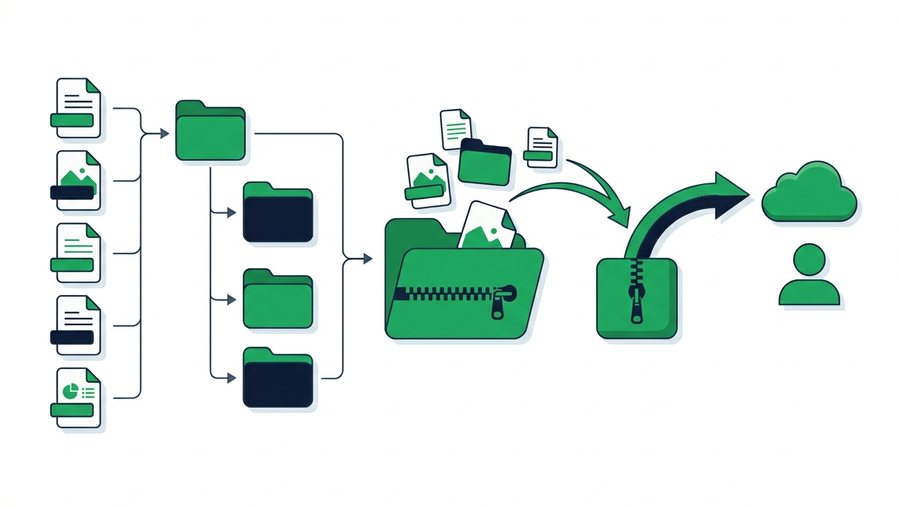
You go to send a client three photos, and you spend five minutes scrolling through IMG_4471.jpg, IMG_4472.jpg, and Untitled(3).png trying to figure out which is which. Then you send the wrong one. Sound familiar? Messy files don't just slow you down, they make sharing confusing for the person on the other end too.
A little organization fixes all of it. When files have clear names and live in sensible folders, you find the right ones instantly, bundle them cleanly, and send a package that makes sense to whoever opens it. The prep takes a few minutes and saves far more.
This guide covers the simple habits that make files easy to share: naming conventions that actually help, folder structures that don't collapse into chaos, and how to zip and prep a batch so it uploads fast and lands clearly. None of it is technical, and all of it pays off the moment you hit send.
Key takeaways
- Name files date-first in YYYY-MM-DD format, then project, then a short description, so they sort by time on their own.
- Zip documents, spreadsheets, and text (often 50%+ smaller); skip zipping already-compressed photos and video.
- Keep folders just two or three levels deep, deep enough to organize, shallow enough to navigate.
- Trim duplicates and drafts, and stay under 3 GB and 100 files per transfer on ShareIt.onl.
Name Files So They Make Sense
The single biggest improvement you can make is naming. A file's name should tell you, and your recipient, what's inside without opening it.
A naming pattern that works
Use a consistent order: date, then project or topic, then a short description. For example:
2026-07-20-website-homepage-final.png2026-07-20-invoice-acme-corp.pdf2026-07-19-family-reunion-group-photo.jpg
Starting with the date in YYYY-MM-DD format is the trick that makes everything sort neatly by time. And "final" beats "v3," "latest," and "use this one," which nobody can rank later.
Small naming rules that save headaches
- No spaces if you can help it. Use hyphens or underscores; spaces sometimes break in links and older systems.
- Keep it short but clear. Long enough to identify, short enough to read at a glance.
- Avoid special characters like
/ \ : * ? " < >, which some systems reject. - Be consistent. Pick one pattern and stick to it, so future-you isn't guessing.
Good names matter even more when you share, because the recipient sees exactly what you named the file. A clear name is free documentation.
Tip: Give a zipped batch a name that explains itself, like
2026-07-20-acme-contracts.zip. The recipient sees exactly the name you chose, so a clear one heads off wrong-file mix-ups and follow-up questions.
Build Folders That Don't Turn Into a Mess
Folders keep related files together so you're not hunting across your whole drive. The goal is a structure shallow enough to navigate but organized enough to find things.
A simple, reliable structure
Group by project or by type, whichever matches how you think:
Client Work/
  Acme-Corp/
    contracts/
    photos/
    invoices/
  Beta-Inc/
    ...
Personal/
  2026-vacation/
  home-documents/
Two or three levels deep is usually plenty. Go much deeper and you'll spend more time clicking than finding. The point of folders is to make grabbing a whole batch to share quick, one folder, one selection, done.
Prep a Batch Before You Send It
Once your files are named and grouped, a quick prep pass makes the actual share fast and clean.
Zip the right things
Zipping bundles many files into one and can shrink documents and text meaningfully. Here's when it helps:
| File type | Zip it? | Why |
|---|---|---|
| Word, Excel, text, CSV | Yes | Compress well, often 50%+ smaller |
| Many small files | Yes | One clean download instead of dozens |
| Photos (JPEG, PNG) | Optional | Won't shrink, but bundles neatly |
| Video (MP4, MOV) | No | Already compressed, waste of time |
| PDFs | Optional | Bundles neatly, little size gain |
Zipping a folder of a dozen documents turns a fiddly multi-file send into one tidy archive with a clear name like 2026-07-20-acme-contracts.zip.
Trim the fat
Before sending, remove what the recipient doesn't need: duplicate photos, rough drafts, stray screenshots. A cleaner batch uploads faster and spares the other person from sorting through clutter. If your files are pushing size limits, resizing photos and trimming videos helps too, and it pairs well with our tips on maximizing file sharing speed.
Before-You-Send Checklist
Run through this every time and your shares stay clean and professional:
Then share the clean batch
With everything prepped, the send is the easy part. Upload the folder or zip to a browser tool, up to 100 files and 3 GB with ShareIt.onl, and share the link or QR code. Because you named and bundled things first, the recipient opens a package that explains itself. For sending sizable batches, our page on how to send large files covers fitting bigger jobs into a transfer, and our overview of how to share files online rounds out the full workflow. And to see how the tools themselves have evolved, our roundup of what's new in file sharing for 2026 covers the latest changes.
Keep It Tidy Over Time
Organization isn't a one-time cleanup, it's a light habit. A few routines keep things from sliding back into chaos:
- Name files right when you save them, not later. Renaming a pile of
IMG_files after the fact is nobody's idea of fun. - Do a quick monthly sweep. Delete duplicates and rough drafts, and file loose items into folders.
- Keep a "to send" folder. Drop things you'll share soon into one spot so they're ready to bundle.
- Reuse your naming pattern everywhere. Consistency across projects makes searching quick.
Ten minutes of tidying now saves the frantic "where did I put that file" search later, and makes every future share smoother.