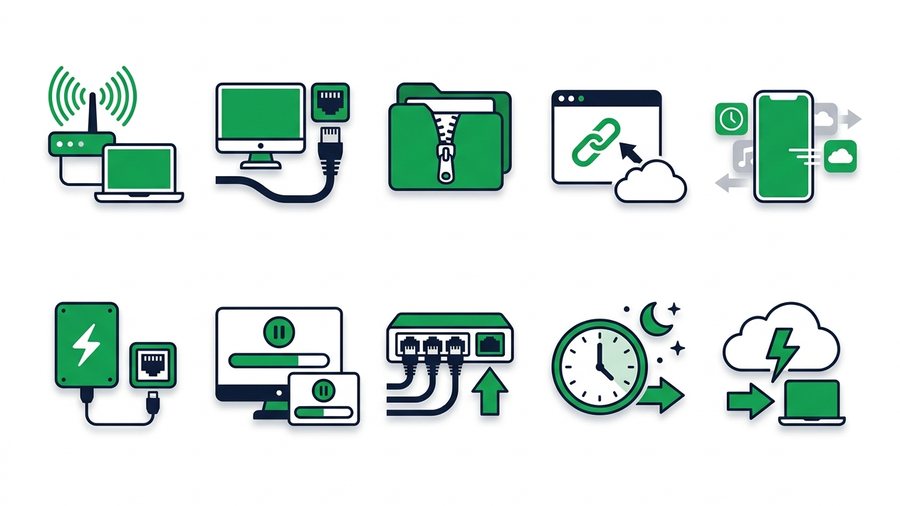
Few things test your patience like a progress bar that crawls from 4% to 5% while you wait to send one folder of photos. The good news is that slow transfers almost always come down to a handful of fixable causes: a weak connection, oversized files, or a sharing method that fights you instead of helping.
You don't need faster internet or expensive hardware to fix most of this. Small changes, like choosing the right network or zipping a batch before you send it, can cut a ten-minute upload down to two. And once the file is up, a plain link travels instantly no matter how you paste it.
Below are ten tips you can apply today. They're ordered roughly from "biggest impact" to "nice bonus," so start at the top and stop when your transfers feel quick enough.
Key takeaways
- Zipping documents and text can shrink them 50% or more; skip zipping photos, video, MP3s, and PDFs.
- Email attachments cap around 25 MB, while a browser link uploads once and carries up to 100 files and 3 GB.
- Resizing a 5 MB phone photo to about 1 MB, or trimming a clip from 400 MB to roughly 70 MB, cuts upload time with no visible loss.
- Use the 5 GHz Wi-Fi band near the router, or plug into Ethernet, for the fastest, steadiest uploads.
Get Your Connection Right First
Your network sets the ceiling for everything else. No trick beats a solid connection, so fix this before you touch anything else.
1. Choose Wi-Fi over mobile data for large files
Home and office Wi-Fi is usually faster and steadier than cellular data, and it won't eat your monthly plan. A single multi-gigabyte transfer can burn a big chunk of a limited data cap. When you're on the go and must use data, a 5G signal beats 4G by a wide margin, but a stable Wi-Fi bar beats a shaky 5G one every time.
2. Stand closer to the router
Wi-Fi speed drops fast with distance and walls. Moving from two rooms away to the same room can double your real-world throughput. If you upload from the far corner of the house and wonder why it stalls, that corner is the problem, not the file.
3. Use the 5 GHz band when you can
Most modern routers broadcast two networks: 2.4 GHz reaches farther but runs slower, and 5 GHz is much faster over short distances. If your Wi-Fi has two names (often one ending in "-5G"), pick the 5 GHz one when you're close to the router for the fastest uploads.
Note: When you send files, your plan's upload speed is the ceiling, not the download speed most plans advertise. Home connections usually upload far slower than they download, so a transfer can crawl even on "fast" internet.
Shrink What You Send
The fastest file to transfer is a smaller file. Every megabyte you remove is a megabyte you never have to wait on.
4. Compress files before sending
Zipping documents, spreadsheets, and text files can shrink them by 50% or more, and bundling many small files into one archive avoids the slow "handshake" that each separate file adds. One tip: photos and videos are already compressed, so zipping them barely helps. For those, resize or trim instead.
5. Resize photos and trim videos
A phone photo can be 5 MB when a 1 MB version looks identical on any screen. Trimming a 4-minute clip to the 40 seconds that matter turns a 400 MB file into roughly 70 MB. Prepping your batch this way pairs nicely with the habits in our guide to organizing your files for better sharing.
6. Send the right number of files at once
Ten tiny files can be slower to upload than one zipped bundle because of per-file overhead. Group small items together, but avoid stuffing one giant transfer when two smaller ones would upload in parallel across two browser tabs.
Pick a Faster Method
How you move the file matters as much as the file itself.
7. Share a link instead of attaching
Email attachments cap out around 25 MB and often re-upload the file to every recipient. A browser tool uploads once and hands out a short link anyone can open. With ShareIt.onl, you drop in up to 100 files and 3 GB, get a link plus a QR code, and paste that link anywhere. The link itself sends instantly.
8. Use a wired connection for really big jobs
If you routinely move large batches from a laptop, plugging into Ethernet removes Wi-Fi interference entirely and gives you the full speed your internet plan allows. A cheap USB-to-Ethernet adapter pays for itself the first time you upload a multi-gigabyte folder without a single stall.
9. Close bandwidth hogs while you upload
Cloud backups, video calls, streaming, and system updates all compete for the same pipe. Pausing a 4K stream or a background sync during your upload frees the whole connection for the transfer, often speeding it up dramatically.
10. Skip the compress step for already-compressed formats
This one saves time, not bandwidth. Don't waste three minutes zipping a folder of MP4s, JPEGs, or PDFs that won't shrink. Recognizing when compression helps, and when it's just busywork, keeps your workflow quick.
Quick Reference: Tips Ranked by Impact
Here's the whole list at a glance, with the situation where each tip helps most.
| # | Tip | Best for | Typical time saved |
|---|---|---|---|
| 1 | Use Wi-Fi over data | Large uploads on the go | High |
| 2 | Move closer to router | Weak signal spots | High |
| 3 | Use the 5 GHz band | Being near the router | Medium |
| 4 | Zip documents | Many small text files | High |
| 5 | Resize/trim media | Photos and videos | High |
| 6 | Batch smartly | Mixed file sets | Medium |
| 7 | Share a link | Any transfer over 25 MB | High |
| 8 | Wire in with Ethernet | Frequent big transfers | Medium |
| 9 | Close bandwidth hogs | Slow, stalling uploads | Medium |
| 10 | Skip pointless zipping | Media-only batches | Low (saves effort) |
Use this as a two-pass checklist: fix the connection (tips 1-3), then shrink and send smart (tips 4-10).
A Fast Workflow, Start to Finish
Speed only helps if the transfer finishes. If yours keeps dying partway, how to recover a failed file transfer works through the usual causes.
Putting it together, here's how a quick transfer actually looks:
- Connect to the strongest Wi-Fi you have, ideally the 5 GHz band, close to the router.
- Prep your files: zip documents, resize photos, trim video.
- Pause any streaming, syncing, or downloads running in the background.
- Upload the batch once and grab the link and QR code.
- Paste the link into chat, email, or a message, or scan the QR code in person.
The upload is the only part that takes time, and every tip above shortens it. If you're moving files between a phone and a computer, our step-by-step on transferring files from phone to PC shows the same speed habits in action. And when a single file is genuinely huge, our page on how to send large files covers the workflow built for exactly that.