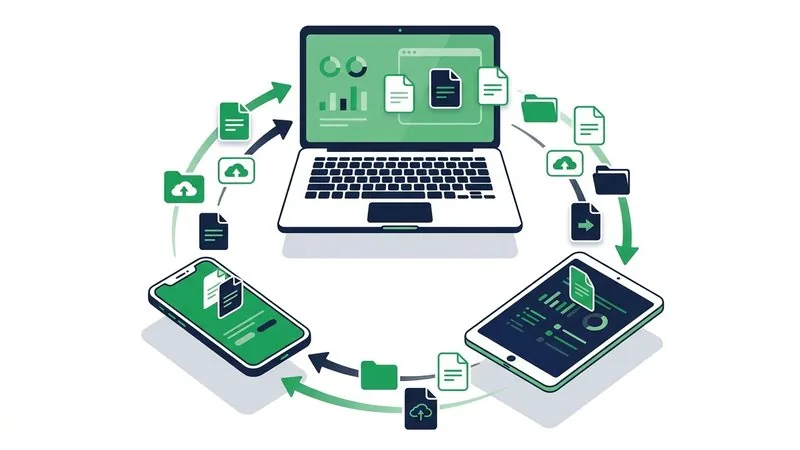
Moving a file from Windows to an iPhone is not as simple as dragging it onto a removable drive. Windows can import camera photos from an iPhone, but sending an arbitrary PDF, ZIP or video in the other direction involves an app, cloud storage or a browser handoff.
TL;DR: For a one-time transfer, upload on the PC with Computer to Phone Transfer, scan the resulting QR code with the iPhone camera, and download through Safari. Use Apple Devices when you regularly sync files into a compatible iPhone app, and use iCloud Drive when you want ongoing access across your own devices.
Key points
- A browser and QR transfer works without installing iTunes or matching apps.
- Apple Devices can copy files only into iPhone apps that support File Sharing.
- iCloud Drive is useful for files you want to keep synchronised.
- Large offline libraries are usually better suited to a cable-based workflow.
- Browser downloads normally appear in the Files app, not automatically in Photos.
Choose the method by job
| Method | Best for | Account or app | Main limitation |
|---|---|---|---|
| Browser link and QR | One-time documents, videos and ZIPs | No recipient account | Requires internet |
| Apple Devices | Repeated cable transfers into supported apps | Windows app | Not every iPhone app accepts files |
| iCloud Drive | Your own files on several devices | Apple account | Uses cloud storage |
| Email or chat | One small item | Usually an account | Size limits or compression |
Apple documents its current cable workflow in Transfer files between your Windows device and iPhone. The important qualification is that Apple Devices transfers files into apps that support File Sharing. It does not turn the whole iPhone into an ordinary Windows drive.
The browser and QR workflow
Use this route when the file is already on the PC and the iPhone is nearby:
- Open Computer to Phone Transfer on Windows.
- Select the files or drag them into the upload area.
- Wait for the link and QR code.
- Open Camera on the iPhone and scan the code on the PC screen.
- Tap the banner, open the download page and save the files.
- Check Files under Downloads before closing the transfer page.
Windows file -> browser upload -> QR code on PC
                                      |
                                      v
                              iPhone camera
                                      |
                                      v
                              Files / Downloads
The laptop-to-phone guide explains the same browser method across Windows, Mac, Linux and Chromebook. If the file is a photo, computer-to-phone photo transfer covers the additional step of saving it into the photo library.
When Apple Devices is the better choice
Use Apple Devices when you have a cable, control the Windows computer and regularly move files into an app that supports File Sharing. Connect the iPhone, approve the trust prompt, select the device, open Files and choose the destination app.
This route can be efficient for a large offline package, but check the receiving app before starting. A document copied into one app may not appear as a general file everywhere else. For the reverse direction, the existing guide to moving files from iPhone to Windows explains imports and browser alternatives.
Where the file goes on iPhone
A file downloaded in Safari normally appears in Files under Downloads. Depending on Safari settings, that folder may sit in iCloud Drive or On My iPhone. Images and videos downloaded as files may need to be opened and saved to Photos separately.
If the transfer succeeded but the item seems missing, use the Files app search and sort by date. The broader QR file-sharing guide also covers scanning distance, brightness and link expiry.
Transfer planning form
| Question | Your answer |
|---|---|
| File type and size | |
| One-time or recurring transfer | |
| Internet available | Yes / No |
| Destination app on iPhone | |
| Sensitive material | Yes / No |
Read next
- How to transfer files from a laptop to a phone
- How to share files with a QR code
- How to share large files online
- How to send sensitive documents securely