Move files between any two devices from your browser
No cable? No problem. Upload on one device, scan the QR code on the other, and your files jump across - Android to iPhone, phone to PC, Mac to Windows, anything to anything. Know which way you are sending? There is a step-by-step page for each direction below.
Your link expires on the schedule you pick above (24 hours by default). Every download keeps it alive for another 24 hours. Expiry disables the public address; normal files remain private in My Files.
Copy and send it now - The files appear for the recipient as the upload finishes, using the security settings you chose before selecting them.
Scan the QR code with any phone camera to open the link instantly.
Which way are you sending?
The uploader above works between any two devices. These pages walk you through one direction each, with the right tool for it.
Moving a file from your phone to your laptop should not need a cable, a driver, or matching brands. Upload the file on one device, then open the link or scan the QR code on the other, and it downloads straight away. Because everything runs in the browser, it does not matter whether you are going from Android to a Windows PC or from an iPhone to a Mac.
You can move up to 100 files at once, up to 3 GB total, in a single share - one big file or many smaller ones. There is no pairing and no app on either device. Set the link to last 1 hour, 12 hours, 24 hours, 3 days, or 7 days depending on how long you need the handoff to stay open. Each download keeps the link alive another 24 hours, so a two-way transfer will not time out on you.
- Works across every OS - Only a browser is needed
- QR code scanning for instant phone transfers
- No Bluetooth pairing, cables or apps
- Nothing to configure on the receiving device
Why transfer files across devices with a link?
Cables and pairing tools only work when the two devices speak the same language, and they often do not across brands and operating systems. A link works anywhere a browser does, so a phone and a computer that share nothing else can still trade files in seconds. The QR code makes it even faster: scan it with a camera and the download opens with no typing. When you are done, the expiry clock clears the file so it is not left sitting on a server.
Start Sharing Free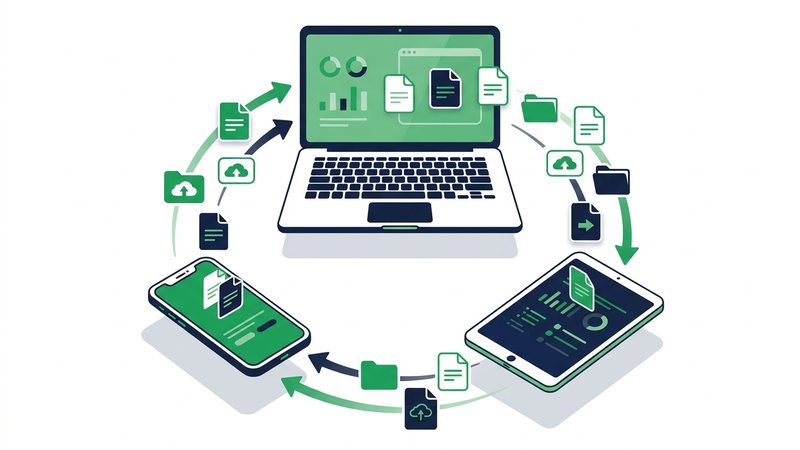
How to transfer files between devices
- On the first device, upload up to 100 files, keeping the total under 3 GB.
- Choose how long the link should last: 1 hour, 12 hours, 24 hours, 3 days, or 7 days.
- On the second device, scan the QR code or open the link in any browser.
- Tap download and the files save straight to that device.
When to use it
Phone to laptop
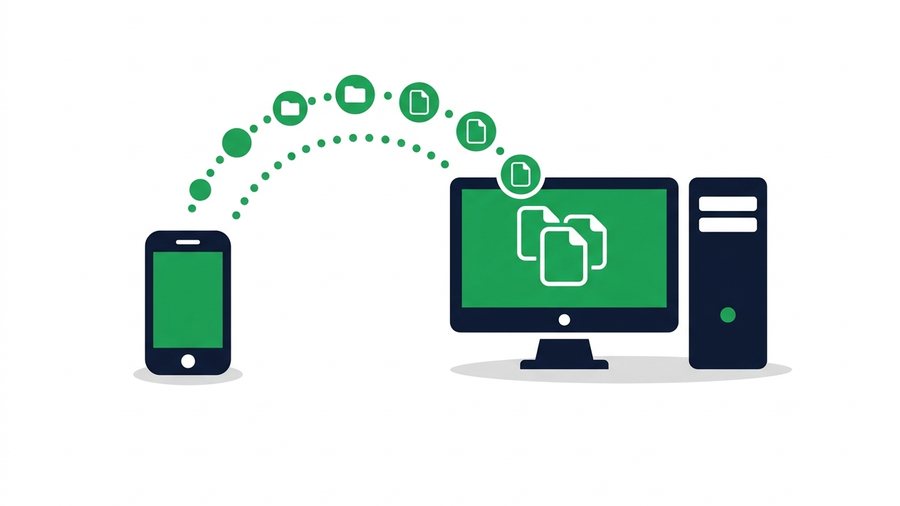
Move photos or a document off your phone by scanning the QR code on your computer, no cable required.
Android to iPhone
Swap files between different phone brands using one link, without hunting for a compatible transfer app.
Mac to Windows
Send a file from a Mac to a Windows PC through a browser link, skipping any cross-platform setup.
Common device transfers
| From to To | How | Needs cable? |
|---|---|---|
| Phone to PC | Link + QR | No |
| Android to iPhone | Link + QR | No |
| Mac to Windows | Link | No |
Transfer Files Between Devices - FAQ
Do both devices need the same operating system?
Do I need to install an app or pair devices?
How does the QR code help?
How much can I move at once?
Guides that go deeper

How to Transfer Photos to a Computer From Any Phone or Camera
One guide to getting photos onto a computer from an iPhone, Android phone, camera or SD card, with the right method for each and the traps in every one.

How to Transfer Photos From iPhone to Computer (Mac and Windows)
Move photos off an iPhone to a Mac or Windows PC without iTunes, with fixes for HEIC files, missing devices, and the Photos app refusing to import.
How to Transfer Files From Phone to PC or Laptop
Move photos, videos and documents from any phone to a desktop or laptop using a QR transfer room, browser links, cables or cloud sync.