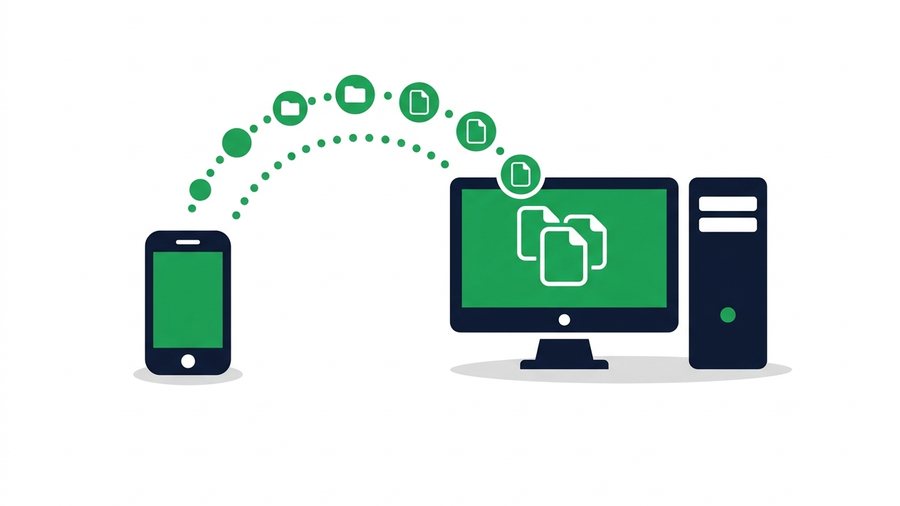
You took 40 photos at a birthday party, and now they're stuck on your phone. The cable is somewhere in a drawer. Your PC doesn't recognize your phone anyway. Sound familiar?
Here's the good news: you don't need a cable, an app, or an account to move files from your phone to your PC. If both devices can open a web browser, you can transfer files in about a minute. This works the same way whether you carry an Android phone or an iPhone.
The same mobile-to-PC process also works as a phone-to-laptop transfer: open the link on the computer you actually use, whether that is a desktop PC or a Windows, Mac, or Linux laptop.
In this guide, we'll walk through the fastest no-cable method step by step, then compare it with the other options - Bluetooth, USB, cloud sync, and Wi-Fi Direct - So you can pick the right tool for the job.
TL;DR: Open Phone to Computer Transfer on the laptop, scan its room code with the sending phone, choose the files, and save them when they appear on the computer. No cable, app or matching device brand is required.
Key takeaways
- Any two devices with a web browser can swap files in about a minute - No cable, app, or account.
- Each browser transfer moves up to 100 files or 3 GB, with a link that expires after 1 hour, 12 hours, 24 hours, 3 days, or 7 days.
- Bluetooth crawls at 0.1–0.25 MB/s (7–17 minutes for a 100 MB video), while a USB 3.0 cable hits 100–300 MB/s.
- iPhones cannot send files to a PC over Bluetooth at all - Apple limits Bluetooth to audio and accessories.
The fastest method: open a transfer room on the laptop
The simplest way to move files is to open a receiving room on the computer. The laptop shows a QR code, the phone scans it, and the phone chooses what to send. No pairing, drivers or sign-up are required.
Here is the full flow using Phone to Computer Transfer:
- Open the transfer page on the receiving PC or laptop.
- Leave the one-time room code visible on the computer screen.
- Scan that code with the sending phone's camera.
- Choose up to 100 files within the size allowance shown on the page.
- Send them and save the arriving files on the computer.
Because everything runs through the browser, it works from Android or iPhone to Windows, Mac, Linux and Chromebook computers. There is nothing to install and nothing to uninstall later.
The QR Code Trick (Skip Typing the Link)
Typing a link on a PC is easy, but going the other direction - PC to phone - Is where QR codes shine. Upload files on your PC, then point your phone's camera at the QR code on screen. Both iPhone (iOS 11 and later) and Android (version 9 and later) scan QR codes with the built-in camera app, no extra software needed. The download page opens instantly. We cover this trick in detail in our guide to sharing files with a QR code.
USB Cable: Fast but Fiddly
A cable is still the fastest option for huge transfers. USB 3.0 moves data at up to 5 Gbps in theory - Real-world speeds are usually 100–300 MB per second. If you're moving a 50 GB video archive, plug in.
But cables come with friction:
- Android: You must switch the phone to "File Transfer (MTP)" mode, which many people miss. MTP connections also drop or stall on some Windows machines.
- iPhone: Windows only shows the DCIM photo folder. To move other file types, you need iTunes or the Apple Devices app installed. For the full set of Apple-specific options, see our guide to transferring files from an iPhone to a Windows PC.
- Both: You need the right cable (USB-C, Lightning) and a free port.
For a handful of photos or a few documents, the setup time often takes longer than a browser upload would.
Bluetooth: Why It Feels So Slow
Bluetooth works without internet, but it was designed for headphones and keyboards, not big files. Here's how the real-world numbers compare:
How the Speeds Stack Up
| Method | Typical Real-World Speed | Time for a 100 MB Video |
|---|---|---|
| Bluetooth 5.x | 0.1–0.25 MB/s | 7–17 minutes |
| Browser upload (50 Mbps Wi-Fi) | ~6 MB/s | ~17 seconds each way |
| Wi-Fi Direct | 10–30 MB/s | 3–10 seconds |
| USB 3.0 cable | 100–300 MB/s | About 1 second |
There's another catch: iPhones don't support Bluetooth file transfer to PCs at all - Apple restricts Bluetooth to audio and accessories. So for iPhone users, this option is off the table entirely.
Use Bluetooth only when you have no internet, no cable, an Android phone, and a very small file.
Cloud Sync: Good for Ongoing Backup
Google Drive, iCloud, OneDrive, and Dropbox all sync your phone's photos to the cloud, where your PC can pull them down. This is great as a set-it-and-forget-it backup.
The trade-offs:
- You need an account on both devices, signed into the same service.
- Free tiers fill up fast. Google Drive gives you 15 GB shared with Gmail; iCloud's free tier is just 5 GB.
- Sync lag. Photos can take minutes to appear, and large videos sometimes wait for Wi-Fi and charging before uploading.
- Files live there forever unless you clean up, which is the opposite of what you want for one-off transfers.
Cloud sync and share links solve different problems. Sync is for your own long-term library; an expiring link is for "get this file over there right now" - Including sending large files to other people.
Note: Cloud sync often leaves public access open until you remember to revoke it. An expiring ShareIt.onl address disables itself after the timer; the normal file remains private in My Files until you delete it.
Wi-Fi Direct and Nearby Share
Wi-Fi Direct creates a device-to-device wireless connection without a router, and it's genuinely fast (10–30 MB/s). On Android, it powers Quick Share; on Windows 11, Nearby Share can receive from Android phones if both devices have Bluetooth and Wi-Fi on.
The limits: it's Android-to-Windows only (no iPhone support), both devices must be in the same room, and setup involves toggling visibility settings that reset themselves. When it works, it's great. When it doesn't, you can burn ten minutes troubleshooting. If your household mixes platforms, see our guide on sharing files between Android and iPhone for methods that work everywhere.
Which Method Should You Use?
Quick decision checklist:
- A few photos or documents, any phone: Browser upload + short link. Under a minute, works everywhere.
- PC to phone: Browser upload + QR code scan.
- Huge folders (bigger than 3 GB): USB cable, worth the fiddling.
- Automatic ongoing photo backup: Cloud sync.
- Android to Windows 11, same room, no internet: Nearby Share / Wi-Fi Direct.
- Almost never: Bluetooth.
If you would rather not read another word: open phone to computer transfer on the PC, scan the code with your phone, and pick your files. For photos specifically, transferring photos to a computer covers the quirks of each device.