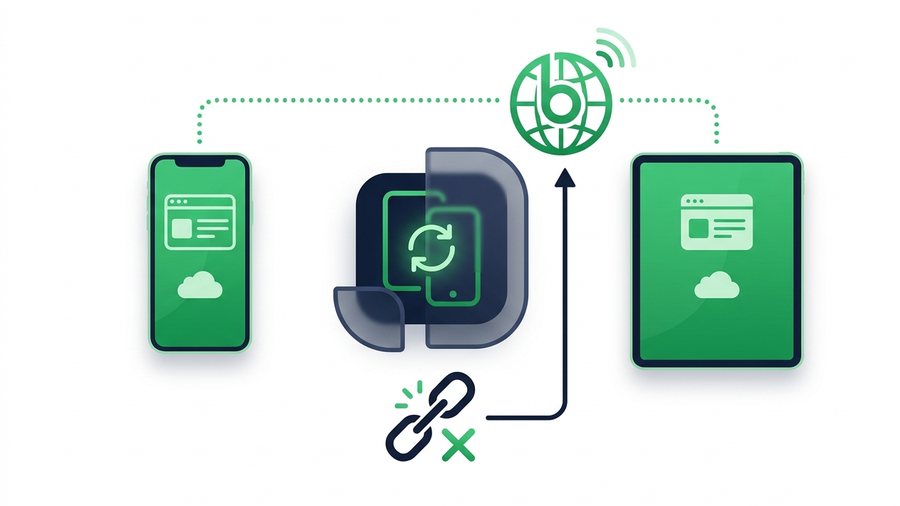
SHAREit started life as an Android tool, so a lot of iPhone and iPad owners wonder what they actually get on iOS. The short answer: there is a SHAREit app on the App Store, but Apple's rules limit what any third-party sharing app can do compared to the same app on Android. That changes how you should think about using it.
This guide explains what works on iPhone and iPad, why iOS boxes the app in, how it stacks up against Apple's own AirDrop, and where the real friction shows up: sending files between an iPhone and an Android phone. It also covers a browser-based approach that sidesteps all of it with nothing to install.
ShareIt.onl is an independent web-based file-sharing tool and is not affiliated with the SHAREit app by Smart Media4U Technology.
Key takeaways
- SHAREit for iOS comes only from the App Store - There is no APK sideloading on iPhone or iPad.
- Apple's sandbox caps every third-party sharing app: no copying installed apps, restricted hotspot control.
- AirDrop is the fastest Apple-to-Apple option (Bluetooth to find, direct Wi-Fi to send) but never reaches Android.
- A browser link (100 files / 3 GB) lets an iPhone send to Android, Windows, or a Chromebook with nothing to install.
Is SHAREit Available on iPhone and iPad?
Yes. SHAREit has historically been listed on Apple's App Store, which is the only place we recommend getting it for iOS. The App Store reviews submissions and pushes updates automatically, so you avoid the tampered or outdated files that plague third-party download sites. On iOS there is no "sideloading an APK" in the Android sense, and that is a good thing for safety.
Where to install it
- Open the App Store on your iPhone or iPad.
- Search for "SHAREit" and confirm the developer before installing.
- If it does not appear in your country's store, treat that as your answer rather than hunting for a workaround.
Availability can vary by region and can change over time, so always check the live App Store listing rather than an old link from a forum.
Why iOS Limits What SHAREit Can Do
Apple runs a tight "sandbox" around every app. An app can only reach the files, folders, and system features Apple explicitly allows. That is great for security and privacy, but it means a third-party transfer app on iPhone simply cannot do everything its Android twin does.
The sandbox in plain terms
On Android, SHAREit can dig into many folders and even copy other installed apps. On iPhone, an app mostly sees its own space plus whatever you hand it through the system share sheet or photo picker. So an iOS transfer app leans on Apple's chosen doorways instead of roaming your whole device.
Android vs iOS in practice
| Capability | Android | iPhone / iPad |
|---|---|---|
| Access most files and folders | Broad | Limited to what you share |
| Copy installed apps to another phone | Possible | Not allowed |
| Background local hotspot control | Fuller | Restricted by iOS |
| Save received files anywhere | Flexible | Into approved locations |
| Works without any app installed | Via browser | Via browser or AirDrop |
The takeaway is not that SHAREit is broken on iPhone. It is that Apple's rules cap every non-Apple sharing app in similar ways, so your expectations should match iOS, not Android.
AirDrop: The Built-In Apple-to-Apple Option
If both devices are Apple, you already have the fastest tool built in: AirDrop. It uses Bluetooth to find nearby devices and a direct Wi-Fi link to move the files, so it is quick, needs no app, and uses no mobile data.
When AirDrop is the easy answer
- iPhone to iPhone, iPhone to iPad, or either to a Mac.
- Both devices are nearby with Wi-Fi and Bluetooth on.
- You want zero setup and no third-party app.
To send, pick the files, tap the share icon, choose AirDrop, and select the other device. That is the whole flow. For anything staying inside Apple's world, AirDrop usually beats installing a separate app. We line it up against the other options in our SHAREit vs Quick Share vs AirDrop comparison.
The limitation is right there in the name of the ecosystem: AirDrop only talks to Apple devices. The moment an Android phone enters the picture, it cannot help.
Note: AirDrop is Apple-only by design. The instant an Android phone, Windows PC, or Chromebook is involved, it won't even appear as a target - That is exactly the gap a browser link fills.
The Cross-Platform Pain Point
Here is where most people get stuck. AirDrop won't reach Android. A local app transfer needs both people to install the same app, keep it open, and stand in the same room, and on iPhone it runs into the sandbox limits above. So iPhone-to-Android sharing often turns into a frustrating dance of "wait, install this first."
Common sticking points:
- The other person does not want to install anything.
- One device is Apple, the other Android, so AirDrop is out.
- You are not in the same room, so a local hotspot transfer won't connect.
- The file is too big to email or drop into a chat app cleanly.
You can read a fuller walkthrough of the mixed-device case in our guide to sharing files between Android and iPhone.
The Universal Browser Fix
A browser-based tool solves the cross-platform problem because every phone, tablet, and computer already has a web browser. Nothing needs to be installed on either side. A tool like ShareIt.onl works like this:
- Open the site on the device that has the files.
- Upload up to 100 files, up to 3 GB total. No account, no sign-up.
- Share the expiring link in any message, or show the QR code to scan.
- The other person opens it in their browser and downloads. Done.
Because it lives in the browser, an iPhone can send to an Android phone, a Windows PC, a Mac, or a Chromebook without anyone matching apps first. The link expires on its own, which is tidy for one-time shares. If you mostly move pictures, our share photos page covers the photo-specific flow.
Matching the tool to the task
| Situation | Best pick on iOS |
|---|---|
| iPhone to iPhone, nearby | AirDrop |
| iPhone to Mac, nearby | AirDrop |
| iPhone to Android | Browser link or QR |
| Sending to someone across town | Browser link or QR |
| A 4 GB movie to a nearby Apple device | AirDrop (no size cap) |
| A few files to any device, no installs | Browser link or QR |
A 3 GB browser share now covers most full videos, though AirDrop is still quicker for a huge movie to a nearby iPhone because nothing has to upload first. Across platforms, or for anyone not in the room, the browser link is usually the least-hassle route.
Quick Setup Checklist
The pattern is simple: stay in the App Store for installs, use AirDrop inside Apple's world, and use a browser tool the moment you cross into Android or send to someone far away.
For photos off an iPhone specifically, iPhone photos to a computer walks through every route including the no-cable one.