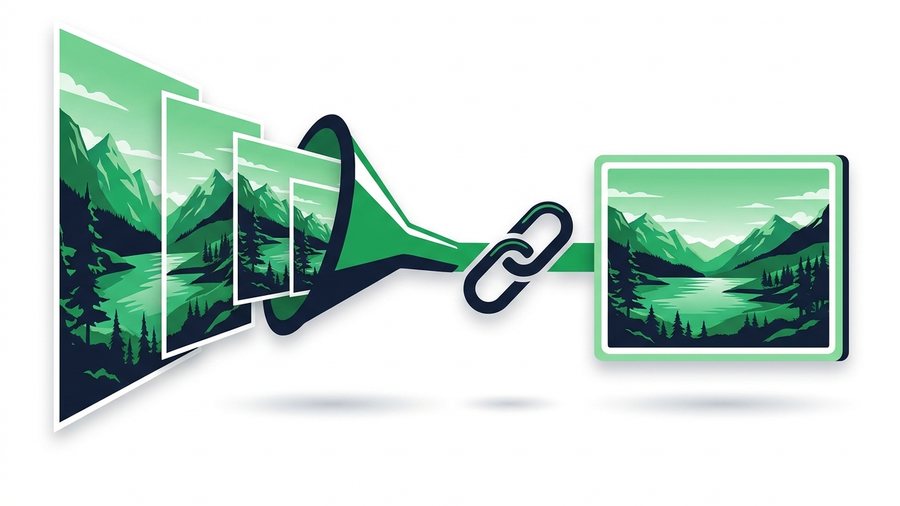
That 12-megapixel photo you posted yesterday? Instagram threw away about 90% of it. Your camera captured a 4032 x 3024 pixel image, and Instagram resized it to 1080 pixels wide, then ran heavy JPEG compression on what was left. For a phone screen, nobody notices. The moment that photo needs to become a print, a client deliverable, or an editing source, the loss is brutal.
The fix isn't fighting Instagram's pipeline, because you can't. The fix is knowing when the compressed copy is good enough and having a dead-simple way to send the original file when it isn't. "Just text it" doesn't work either; iMessage and WhatsApp compress images too, often down to under 500 KB.
This guide explains exactly what Instagram does to your photos, when full resolution genuinely matters, how big your originals really are, and a two-minute workflow for getting untouched files to anyone with a link and a QR code.
Key takeaways
- Instagram resizes any photo to 1080 px wide - A 4032-px original loses about 93% of its pixels.
- It also crops to 1:1, 4:5, or 1.91:1 and strips EXIF data like date, location, and camera settings.
- A 4 MB original comes back as a 150-300 KB JPEG; iMessage and WhatsApp squash photos under 500 KB too.
- Even 100 HEIC or JPEG originals total just a few hundred megabytes, well inside a free 3 GB link.
What Instagram Actually Does to Your Photos
Every photo upload goes through the same processing steps:
- Resize. Images wider than 1080 pixels are scaled down to 1080. Your 4032-pixel-wide original loses roughly 93% of its pixels.
- Crop to ratio. Anything outside 1:1, 4:5, or 1.91:1 gets cropped. A standard 4:3 phone photo always loses edges in a 4:5 post.
- JPEG compression. Instagram re-encodes aggressively. A 4 MB original typically comes back as a 150-300 KB JPEG, with smeared fine detail in hair, foliage, and fabric.
- Metadata stripping. EXIF data, including capture date, location, and camera settings, is removed from the served image.
There's a "Upload at highest quality" toggle in Settings under Media quality, and you should turn it on, but it only reduces the compression. The 1080-pixel ceiling stays.
When You Actually Need Full Resolution
Plenty of shares are fine at 1080 pixels. These five situations are not:
- Printing. A sharp print needs about 300 pixels per inch. A 1080-pixel-wide image prints cleanly at just 3.6 inches wide; an 8 x 10 print needs 3000 x 2400, which only your original has.
- Client work. Photographers and designers delivering to clients need the full file, and often the RAW. A client who screenshots your Instagram post is getting a fraction of what they paid for.
- Editing and retouching. Compression artifacts multiply with every edit. Editors need the cleanest possible source.
- Cropping later. A tight crop of a 12 MP original still holds up; the same crop of a 1080-pixel image turns to mush.
- Archiving memories. Wedding and family photos deserve original quality, because you can't un-compress a file in 2040.
If you've already lost originals and only have your posts, Instagram's official export recovers the best copies Instagram still has, though they remain compressed.
How Big Are Your Originals, Really?
People often avoid sending originals because they assume the files are enormous. Here's what a typical 12 MP phone photo actually weighs:
| Format | Typical size per photo | 100 photos | Notes |
|---|---|---|---|
| HEIC (iPhone default) | 1.5-2.5 MB | ~200 MB | Half the size of JPEG at same quality |
| JPEG (Android default / converted) | 3-5 MB | ~400 MB | Universally compatible |
| RAW / DNG | 12-25 MB | ~2 GB | Full sensor data for editing |
| ProRAW (iPhone Pro) | 25-75 MB | 2.5 GB+ | 48 MP ProRAW runs largest |
| Instagram's served copy | 0.15-0.3 MB | ~25 MB | What everyone else gets |
The takeaway: even a full 100-photo batch of HEIC or JPEG originals lands at a few hundred megabytes, trivial next to the free 3 GB per share. RAW and DNG sets fit too, at roughly 2 GB for 100 frames. Only a big ProRAW or DSLR collection can pass 3 GB - And even then, splitting into two shares covers it.
Tip: Before uploading, pick the true original files from your camera roll, not "optimized" or screenshot versions. A screenshot of your own post is already Instagram's compressed 1080-pixel copy - There is no full quality left in it.
The Two-Minute Workflow: Link Plus QR Code
Here's the workflow we recommend for sending untouched originals to anyone, whether or not they use Instagram:
Send Originals in Five Steps
- Open ShareIt.onl in any browser on your phone or computer. There's no app to install and no account to create.
- Select up to 100 photos or 3 GB per batch, straight from your camera roll. Pick the original files, not "optimized" versions.
- Upload and get two things instantly: a shareable link and a QR code.
- Send the link by text or email, or, if the person is standing next to you, let them scan the QR code with their camera.
- The link expires automatically, so your photos aren't sitting on a server indefinitely.
No compression is applied at any step, so a 4.2 MB JPEG arrives as a 4.2 MB JPEG, with EXIF data intact. This works across platforms too, which kills the classic Android-to-iPhone quality loss problem where green-bubble texting crushes images. For bigger batches or ongoing client galleries, see the photo sharing tool and the rest of the Instagram file guides.
Checklist before you hit send
A Note on Downloader Sites
If you searched for how to save Instagram photos in full quality, you've seen third-party downloader sites and extensions. Skip them. They only grab Instagram's 1080-pixel compressed copy anyway, so there is no "full quality" to be had there, and using them on content you don't own violates Instagram's Terms of Use and usually copyright. Everything in this guide uses official tools plus your own original files, which is the only route to genuine full resolution.