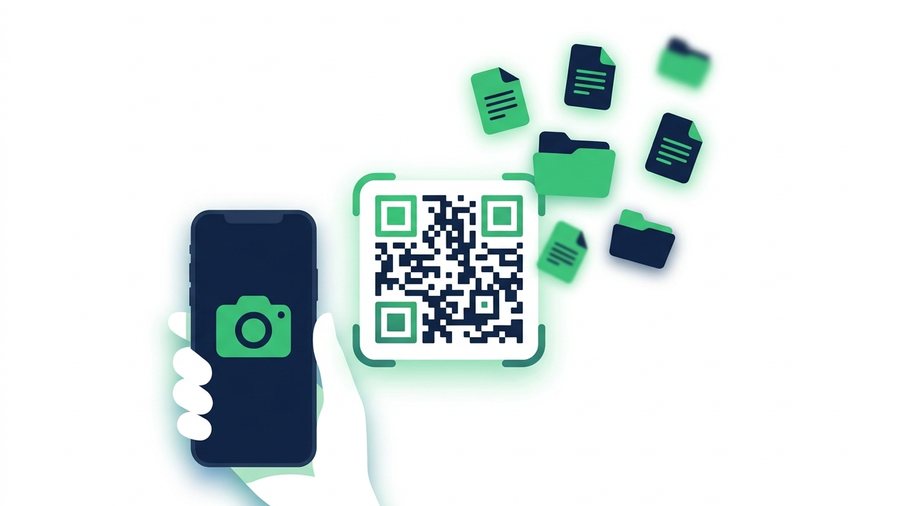
Imagine handing out a file the way you'd hand out a business card: someone points their phone at a square of black-and-white dots, taps once, and the download starts. No typed URLs, no "what's your email?", no app installs.
That's QR file sharing, and it has quietly become the fastest way to move files to anyone standing near you - Or anyone looking at your screen, your slide deck, or your printed flyer. Every modern phone can scan QR codes with its built-in camera, so the receiving side needs literally zero preparation.
Here's how it works, how to set one up in under a minute, and how to make sure every scan actually succeeds.
Key takeaways
- A QR code encodes the link (usually under 100 characters), not the file - So it never grows with file size.
- Built-in cameras scan QR codes: iPhone since iOS 11 (2017), Android since Android 9 (2018), no app required.
- One transfer carries up to 100 files / 3 GB - Enough for 100 photos or about 8 minutes of 4K video.
- The code dies the moment its link expires (1 hour to 7 days, or 30 days with a free sign-in), so choose the longest expiry for anything printed.
What a QR File Share Actually Is
First, a common misconception: the QR code does not contain your file. A QR code holds a small piece of text - Usually well under 100 characters. What it encodes is the link to your file, which lives on a server.
So QR file sharing is really two pieces working together:
- A file-sharing link - Your files get uploaded to a host and receive a short URL. (New to this? See what a file-sharing link is.)
- A QR code - That URL drawn as a scannable pattern, so nobody has to type it.
This matters because it explains the limits: the QR code itself never gets "bigger" with larger files, scanning works even on a printed page, and the code stops working exactly when the underlying link expires.
Step by Step: Create a QR File Share in Under a Minute
Create and Show the Code
Using Transfer Files, the whole process needs no account:
- Open the site in any browser - Phone, tablet, or computer.
- Add your files: up to 100 files, 3 GB total per transfer. Photos, PDFs, ZIPs, videos and more all work.
- Choose an expiry time: 1 hour, 12 hours, 24 hours, 3 days, or 7 days (a free sign-in adds a 30-day option).
- Upload. In a few seconds you get a short link and a matching QR code.
- Show the QR code to whoever needs the files - On your screen, projected on a slide, or downloaded and printed.
How the Other Person Scans It
The receiving side takes about 10 seconds:
- Open the regular camera app (no scanner app needed - See below).
- Point it at the QR code from roughly 20–50 cm away.
- Tap the link banner that pops up.
- The download page opens in the browser; tap to save the files.
Do Phones Need a Special App? (No.)
Built-in QR scanning has been standard for years:
- iPhone: The Camera app has scanned QR codes natively since iOS 11 (2017). There's also a dedicated Code Scanner in Control Center.
- Android: Native camera scanning has been standard since Android 9 (2018). On Samsung, Pixel, and most others, it's on by default; Google Lens covers any stragglers.
In practice, anyone with a phone from roughly the last seven years can scan your code with zero setup. That universality is what makes QR sharing work in rooms full of strangers - It even sidesteps the whole Android vs. iPhone sharing mess, since both platforms scan and download the same way.
Where QR File Sharing Shines
- Classrooms: Put the QR code for the worksheet or slide PDF on the projector. Thirty students download it simultaneously - No email list, no LMS login. With a 7-day expiry, absent students can still grab it later in the week.
- Meetings and conferences: End your talk with a QR slide linking to the deck and handouts. Attendees scan on the way out.
- Printed flyers and posters: Because the code encodes a link, it works on paper. Add a code to an event poster that downloads the schedule, or to a product sheet that links to a spec PDF. Pick the 7-day expiry - Or the 30-day option with a free sign-in - So the printed code lives as long as possible.
- Photo handoffs: After an event, show one code and let everyone grab the photos at full quality - No group-chat compression.
- Laptop to phone: Open computer to phone transfer on the laptop, upload, and scan the result with the phone.
- Phone to laptop: Open phone to computer transfer on the laptop, then scan its receiving-room code with the sending phone.
- Phone to phone: Open phone to phone transfer on the receiving phone and scan its code with the sending phone.
- Mixed ecosystems: The same QR handoff works when the devices do not expose compatible nearby-sharing controls, including Android and iPhone transfers.
Size and Time Limits: What to Expect
Be realistic about what one transfer can carry:
- 3 GB total, up to 100 files. That's about 100 phone photos, a 500-page PDF many times over, or roughly 8 minutes of 4K video. With photos, the 100-file count is the limit you'll hit first.
- The code dies with the link. After your chosen expiry (1 hour to 7 days, or 30 days with a free sign-in), the QR code leads to an expired page. Your stored files remain private in My Files and can be re-shared with a new code. For printed materials, choose the longest expiry that fits.
- Downloads need internet. The scan itself is offline, but fetching the file is a normal download - On conference Wi-Fi, a few hundred megabytes of photos may take a minute or two per person.
Tip: The scan happens instantly, but the download does not. When a whole room scans at once on shared Wi-Fi, warn people the file may take a minute or two to arrive - The code worked; the network is just busy.