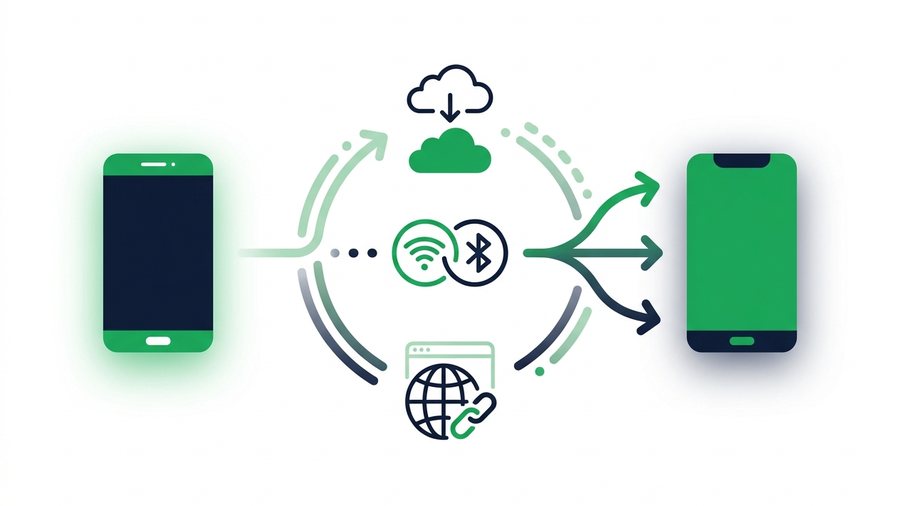
Handing files from one phone to another sounds like it should be simple, and sometimes it is. When both phones share a brand or an operating system, built-in tools make it a two-tap job. The trouble starts when the phones are from different worlds, like an Android and an iPhone, because the fast native tools refuse to talk to each other.
This guide sorts out the whole picture. First we cover the quick same-brand tools, then the reliable ways to bridge across brands, and finally when a nearby transfer beats a far-away one. Whether the other phone is in your hand or across the country, there is a clean method for it.
The short version: same-brand transfers are fast and local, while cross-brand transfers work best through the cloud or a shared browser link. Pick based on the phones involved and how far apart they are.
Key takeaways
- Same brand, nearby: use the built-in tool - AirDrop for iPhones, Quick Share for Android - Both fast, free, and local.
- Mixed-brand nearby support varies. Select Android devices can interoperate with AirDrop, but a browser bridge works across all current models.
- A browser link plus QR code works between any two phones with no app, handling up to 100 files or 3 GB per batch.
- Local tools need the phones close together, but a browser link works near or far and expires on its own.
Same-Brand Transfers Are the Easy Case
When both phones match, use the tool that is already built in. It is fast, free, and needs no setup.
iPhone to iPhone: AirDrop
- On both iPhones, open Control Center and turn on Bluetooth and Wi-Fi.
- Set AirDrop to receive from Everyone for 10 minutes on the receiving phone.
- On the sending phone, tap Share on a file and pick the other iPhone.
- Tap Accept on the receiving phone.
AirDrop moves even large videos in seconds because it uses a direct Wi-Fi link between the two phones.
Android to Android: Quick Share
Most modern Android phones use Quick Share (Samsung and Google merged their tools under this name).
- Turn on Bluetooth and Wi-Fi on both phones.
- On the sender, tap Share and choose Quick Share.
- Pick the nearby phone from the list.
- Accept on the other phone.
Both tools are excellent. Google also documents AirDrop interoperability for Quick Share on select Android devices, although that support is not available on every model.
The Cross-Brand Problem
AirDrop is Apple's sharing interface and Quick Share is Google's. Google's current Quick Share help says select Android devices can exchange files with Apple devices through AirDrop interoperability. When that option is missing or discovery fails, you need a bridge that does not care about the brand.
| Phones | Best built-in tool | Works across brands? |
|---|---|---|
| iPhone to iPhone | AirDrop | Apple devices |
| Android to Android | Quick Share | Android devices |
| iPhone to Android | Native nearby on supported models, otherwise browser bridge | Sometimes |
| Android to iPhone | Native nearby on supported models, otherwise browser bridge | Sometimes |
Why a Browser Link Works Between Any Two Phones
The fix for the cross-brand problem is a tool that runs in a web browser, since every phone has one. You upload a file on one phone and open the resulting link on the other.
The Steps
- On the first phone, open your browser and go to the sharing site.
- Upload up to 100 files or 3 GB total.
- A short link and a QR code appear.
- On the second phone, scan the QR code or type the link.
- Download the files. The link expires later, so nothing stays online.
This is exactly why ShareIt.onl works for any pairing: a browser link plus a QR code means an iPhone and an Android can trade files without a single app installed. For a full walkthrough of the mixed-brand case, see our guide on how to share files between Android and iPhone.
The QR Code Advantage
When both phones are together, the QR code is the fastest handoff. One phone shows the code, the other scans it with its camera, and the file downloads. No typing a link, no spelling errors. Our QR code sharing guide explains the scan step in more detail.
Tip: For a private handoff, add a password when you upload and turn on delete-after-first-download. The link then stops working the instant the other phone finishes, so a shared file never sits online waiting.
Nearby vs Far-Away Transfers
Where the other phone sits changes which method makes sense.
When the Phones Are Close Together
If both phones are in the same room, you have the most options:
- Same brand: AirDrop or Quick Share, fastest of all.
- Mixed brand: scan a QR code from a browser link.
- Any brand: Bluetooth for tiny files, though it is slow.
When the Phones Are Far Apart
If the other phone is in another city, local tools like AirDrop and Quick Share are useless because they need the phones near each other. Reach across distance with:
- A browser link you send by text, chat, or email.
- A cloud folder shared through Google Drive or iCloud.
- A messaging app like WhatsApp or Telegram for smaller files.
The browser link is handy here because you can text the link to someone far away, and they open it on any phone.
Checklist for a Cross-Brand Transfer
Comparing Your Options
| Method | Same brand only? | Needs internet? | Distance | Best for |
|---|---|---|---|---|
| AirDrop and Quick Share | Usually same ecosystem, with select mixed-device support | No | Nearby only | Compatible nearby devices |
| Browser link + QR | No, any brand | Yes | Near or far | Mixed brands |
| Cloud folder | No | Yes | Near or far | Ongoing sharing |
| Messaging app | No | Yes | Near or far | Small files, chat |
For moving files onto a computer instead of another phone, our guide on how to transfer files from phone to PC covers that path.
Quick Recommendations
If both phones are the same brand and in the same room, use AirDrop or Quick Share. If the phones are different brands, or one is far away, use a browser link and QR code. It is the one method that works in every situation, which makes it the safe default when you are not sure.
The quickest version of this: open phone to phone transfer on the phone that is receiving, and scan its code with the phone that is sending. It works Android to iPhone and back.