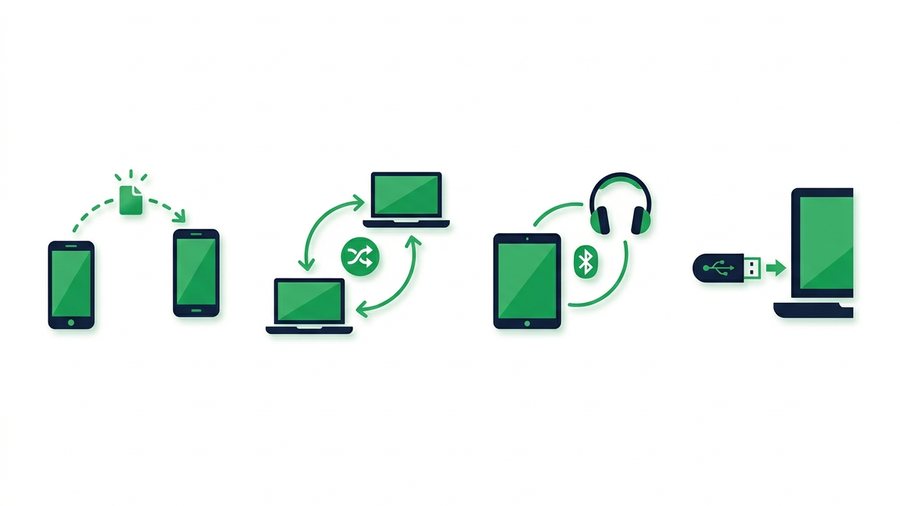
Sometimes you need to hand a file to the person right next to you and there's no Wi-Fi in sight - A basement office, a plane, a campsite, or a network that keeps dropping. The good news is that most phones and laptops can talk to each other directly, using their own short-range radios, without ever touching the internet. Your files hop straight from one device to the other.
These offline tools are fast and private when the stars line up: same room, compatible devices, and a little patience with the pairing steps. The catch is that they're picky. AirDrop only speaks to Apple gear. Quick Share wants Android or Windows. Bluetooth works almost everywhere but crawls. And a USB stick doesn't care about brands at all, as long as both machines have a port.
This guide walks through every offline method, how fast each one really is, and where it breaks down. Then we'll be honest about the flip side: the moment you do have any internet at all, a simple browser link often beats every one of these - Especially across brands or across town.
Key takeaways
- Offline transfers use direct device-to-device radios, so they need zero data but usually require the same room.
- Wi-Fi Direct and Quick Share move files at roughly 20–40 MB per second; classic Bluetooth limps along near 0.1 MB per second - Up to 400x slower.
- Select Android devices support AirDrop interoperability, but other cross-brand offline transfers may still need a USB drive or SD card.
- The instant you have any internet, a browser link like ShareIt.onl (up to 100 files, 3 GB) beats offline tools for cross-brand and remote sharing.
Why Offline Sharing Works at All
Your phone and laptop are packed with short-range radios: Wi-Fi, Bluetooth, and increasingly a mix of the two. When two devices are close together, they can form a tiny private network just between themselves. No router, no cell tower, no data plan. The file leaves one device and arrives at the other directly.
That's why offline sharing is genuinely private - The file never sits on a company's server. It's also why it's limited: radios are short-range and fussy about which brands they'll pair with. The trade-offs almost always come down to two questions. Are the devices in the same room? And are they the same brand family?
The Main Offline Methods
Quick Share (Android and Windows)
Quick Share (formerly Nearby Share) is the built-in tool for Android phones and Windows PCs. It uses Bluetooth to find nearby devices, then switches to a direct Wi-Fi link for the actual transfer, so it's quick. Turn it on, set who can see you, pick the file, tap the receiver's name, and accept on the other side.
It is the closest thing Android has to AirDrop. Google's current Quick Share documentation describes AirDrop interoperability on select Android devices, but other models still cannot use that path.
AirDrop (Apple)
AirDrop is Apple's version and it's excellent - Between an iPhone, iPad, and Mac it's nearly instant. It also uses Bluetooth to discover and Wi-Fi to transfer. Open the share sheet, tap AirDrop, choose the person, and accept.
The wall is obvious: AirDrop is Apple-only. There is no Android or Windows AirDrop. If your other device isn't an Apple product, you're out of luck.
Wi-Fi Direct
Wi-Fi Direct lets two devices build a Wi-Fi connection with no router in the middle. It's the engine under many "send" apps and under both Quick Share and AirDrop. On its own it can be clunky to set up, but it's the fastest offline option because it runs at real Wi-Fi speeds.
Bluetooth
Bluetooth is the universal fallback - Nearly every device has it, across all brands. The problem is speed. Classic Bluetooth file transfer is painfully slow, fine for a single photo but hopeless for a video. Use it only when nothing else pairs.
SD Card or USB Drive
The oldest trick still works best across brands: copy the file to a USB stick or SD card, unplug it, plug it into the other device. No pairing, no brand rules, no radios. You just need matching ports (or a small adapter). For a big file between an iPhone and a Windows PC with no internet, this is often the sanest route.
How Fast Is Each Method, Really?
Most of these run on Wi-Fi Direct underneath, whatever the app calls itself - how to use Wi-Fi Direct for file transfer explains what it actually does and where it stops working.
Speed is where these methods split apart. Here's a realistic comparison for moving a 200 MB batch of files.
| Method | Typical speed | Time for 200 MB | Works across brands? |
|---|---|---|---|
| Wi-Fi Direct / Quick Share | 20–40 MB/s | ~5–10 seconds | Android, Windows, and select Apple pairings |
| AirDrop | 20–40 MB/s | ~5–10 seconds | Apple only |
| USB 3.0 drive | 50–100 MB/s | ~2–4 seconds | Yes (matching ports) |
| USB 2.0 / older SD | 5–15 MB/s | ~15–40 seconds | Yes (matching ports) |
| Classic Bluetooth | ~0.1 MB/s | ~30+ minutes | Yes (any device) |
The headline: Bluetooth can be hundreds of times slower than Wi-Fi-based methods. If a transfer is dragging on for many minutes, you're almost certainly on Bluetooth and should switch.
Warning: Don't start a large transfer over classic Bluetooth. A single 200 MB video can take 30 minutes or more and often fails partway. Use Wi-Fi Direct, Quick Share, AirDrop, or a USB drive instead.
An Offline Sharing Checklist
Before you blame the tool, run through the basics - Most failed offline transfers come down to one of these:
When a Browser Link Beats Going Offline
Offline sharing shines in exactly one situation: same room, compatible devices, no internet. Step outside those lines and it gets frustrating fast. iPhone to Windows? Android to Mac? Someone across the city? Offline tools either refuse or force you onto a slow USB shuffle.
The moment you have any internet - Even one bar of cellular or shared hotspot - A browser link sidesteps every brand rule. You upload your files once, get a link, and send it. The other person opens it in any browser on any device: iPhone, Android, Windows, Mac, Linux, doesn't matter. No app to install, no pairing, no "device not found." With ShareIt.onl you can send up to 100 files or 3 GB this way, add an expiring link, and even show a QR code for a phone to scan.
That's the real dividing line. For a file you're handing to the person beside you with no signal, reach for AirDrop, Quick Share, or a USB stick. For anything cross-brand or remote, a link wins. If you're picking between the two often, our transfer files hub lays out the choices, and we have focused walkthroughs for the two hardest cases: sharing files between Android and iPhone and moving files from a phone to a PC.