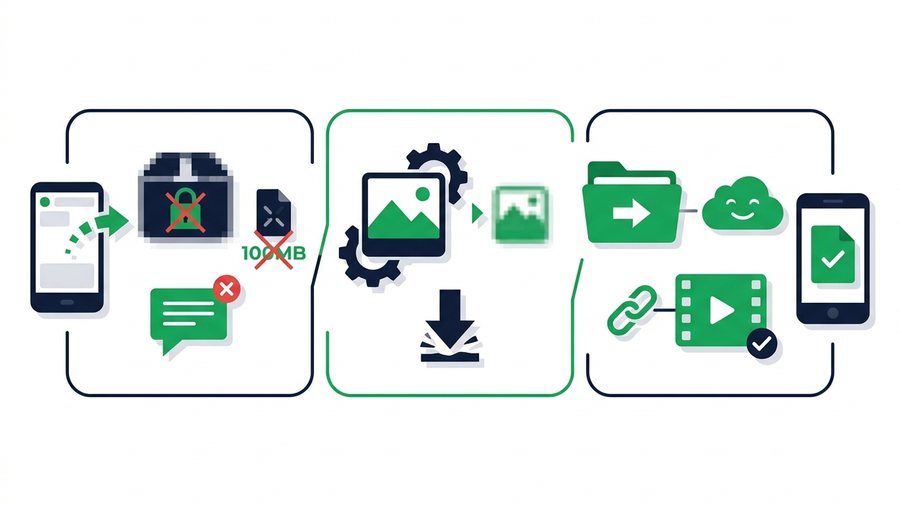
WhatsApp is where most of us share day to day, so it feels natural to drop a big file in a chat and hit send. Sometimes it works. Other times the video looks blurry, the photo loses detail, or the app flat-out refuses the file. The truth is that WhatsApp treats different file types very differently, and knowing those rules saves you a lot of frustration.
The key thing to understand is this: WhatsApp can move surprisingly large files, but only when you send them the right way. A 2 GB movie can go through as a "document," while the same clip sent as a normal video gets squeezed down to a fraction of its quality.
This guide breaks down the exact limits by file type, explains why your media gets crushed, and shows you the trick to keep full quality. It also covers the moment when a plain download link beats WhatsApp entirely.
Key takeaways
- WhatsApp allows documents up to 2 GB, but photos and videos sent the normal way are always compressed.
- Sending your file as a Document keeps it byte for byte the same, with no re-encoding.
- A normal photo send often loses 80 to 90 percent of the file size and a lot of detail.
- For big batches or top quality, a link tool like ShareIt.onl moves up to 100 files (3 GB total) with no compression.
WhatsApp File Limits by Type
WhatsApp raised its document limit to 2 GB in most regions, which is a lot. But that number only applies to files sent as documents. Photos and videos sent the normal way are capped much lower and compressed on the way out.
| File type | How you send it | Size limit | Quality kept? |
|---|---|---|---|
| Document (any file) | Attach > Document | 2 GB | Yes, untouched |
| Photo (gallery) | Attach > Photos & Videos | ~100 MB | No, compressed |
| Video (gallery) | Attach > Photos & Videos | ~2 GB | No, compressed |
| Voice message | Mic button | ~100 MB | Yes |
| Status update | Status tab | 30 sec video | No, compressed |
Notice the pattern. The 2 GB ceiling sounds generous, but the "photos and videos" path always re-encodes your media to save data. That re-encoding is exactly why your sharp 4K clip arrives looking soft.
How to Send a 3 GB File on WhatsApp
You cannot attach a 3 GB file directly because WhatsApp's document limit is 2 GB. Upload the file to ShareIt.onl, copy the expiring download link, and paste that link into the WhatsApp chat instead. The recipient opens it in a browser and downloads the original file without WhatsApp compressing it.
How to send a large video on WhatsApp without compression
For a video up to 2 GB, attach it as a Document. For a larger video or several clips totaling up to 3 GB, send an expiring download link. Both routes preserve the original file; the normal Photos & Videos option does not.
Why Videos and Photos Get Crushed
WhatsApp was designed to work on slow networks and cheap phones all over the world. To keep messages fast and cheap, it shrinks media before sending. This is called compression, and it throws away detail you can't get back.
What happens to a photo
A 12-megapixel photo straight from your phone might be 4 MB. Send it through WhatsApp as a normal photo and it often lands around 100 to 300 KB. That's a 90%-plus reduction. Colors flatten, fine text gets fuzzy, and if someone zooms in, the blocky artifacts show. For a quick meme, nobody cares. For a product photo or a document scan, it ruins the file.
What happens to a video
Video takes an even bigger hit. WhatsApp drops the resolution (often down to 480p or 720p), lowers the bitrate, and re-encodes the audio. A crisp 1080p clip can lose more than half its clarity. Motion looks smeary and dark scenes turn into a mess of blocks. If you care about how video quality survives sharing, our guide to the best way to share large videos walks through what protects your footage and what destroys it.
Send as a Document to Keep Quality
Here's the workaround most people never learn: send your photo or video as a document instead of through the photos option. Documents are not compressed, so the file arrives byte for byte the same as the original.
Steps on both iPhone and Android:
- Open the chat and tap the attach icon (the paperclip or the plus).
- Choose Document, not Photos & Videos.
- Tap Browse or Choose file and find your photo or video in Files.
- Select it and hit send. WhatsApp shows it as a file icon, not a preview.
- The recipient taps to download the full-quality original.
The trade-off is that documents show up as a plain file name with no thumbnail preview, which feels less friendly in a chat. But for anything where sharpness matters, that's a fair price.
Tip: Rename the file to something clear before you send it as a document, like "Beach-sunset-4K.jpg." Because there's no preview thumbnail, a good name is the only clue your recipient gets about what they're about to download.
When the document trick isn't enough
The document method keeps quality, but it still runs into the 2 GB ceiling and can be slow over mobile data. If you're sending several large clips or a folder of high-resolution shots, WhatsApp starts to feel clumsy. That's your signal to switch approaches.
When to Use a Link Instead
For big batches, top quality, or people who aren't on WhatsApp, a direct download link is simpler and cleaner. Instead of pushing the file through a chat app that wants to shrink it, you upload once and share a short link that anyone can open in a browser.
This is where a tool like ShareIt.onl fits. You drag in up to 100 files (up to 3 GB total per transfer), pick how long the link should live (1 hour, 12 hours, 24 hours, 3 days, or 7 days), and get a link plus a QR code. No app, no account, and no compression touches your files.
Use a link when:
- You need full quality guaranteed. No re-encoding at all, unlike WhatsApp media.
- You're sending to a group. One link works for everyone, instead of forwarding to each chat.
- The recipient isn't on WhatsApp. Email, text, or Slack all accept a plain link.
- You want public access to end later. An expiring link disables itself automatically; delete the stored file separately from My Files.
If you regularly share clips, our overview of how to share videos the smart way covers link, quality, and size choices in one place.
Quick checklist before you send
Sending Photos at Full Resolution
Photographers, sellers, and anyone printing images need every pixel. WhatsApp's normal photo send is the wrong tool for that job because it strips resolution and color depth. Even the document trick works only one file at a time and gets tedious for a full shoot. For a proper walk-through of keeping every detail, see our guide on how to send high-resolution photos, which covers RAW, HEIC, and JPEG file sizes and the fastest full-quality routes.
Because the link does the work rather than WhatsApp, your storage is the only real limit - and inviting a friend adds 1 GB of it permanently, for both of you.