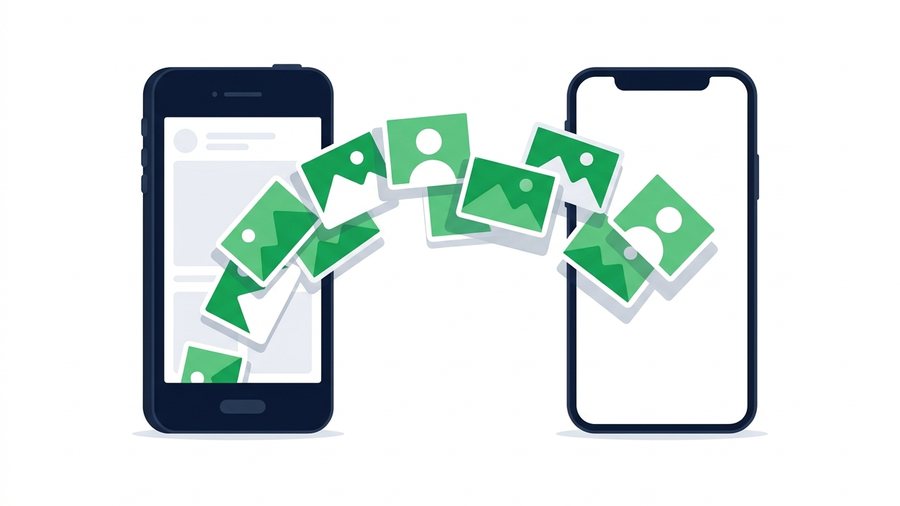
A new phone is exciting right up to the moment you realise your entire photo library is still on the old one. Thousands of pictures, years of them, and a setup screen asking whether you want to transfer data now.
If both phones are the same brand, the built-in tools handle it well and you should use them. If you are switching sides - iPhone to Android, or Android to iPhone - the built-in tools get patchy, and that is where people lose photos or end up with compressed copies.
This guide covers every combination, plus the method that works regardless of what you are moving between.
Key takeaways
- Same brand? Use the built-in migration tool during setup - it is the most complete option
- Switching brands? Google Photos or a direct transfer app handles the bulk
- Chat apps compress photos badly - never move a library through WhatsApp or Messenger
- For a subset of photos, or a mix of devices, a browser link keeps originals intact
First: Decide What You Are Actually Moving
Before picking a method, work out which of these you need.
Everything, including albums and edits. You want the full migration path. Same-brand tools preserve album structure, favourites, and edit history. Cross-brand tools usually move the images but flatten the organisation.
Just the photos themselves. Simpler, and almost any method works.
A specific set - a holiday, a shoot, the last month. You do not need a migration tool at all. Selecting and sending them directly is faster.
Being honest about which you need saves a lot of time. Most people asking about "transferring photos" only need the second or third.
iPhone to iPhone
Apple's Quick Start handles this properly. Put both phones near each other and power on the new one - the old phone offers to set it up. Choose to transfer directly from iPhone rather than restoring from iCloud, and everything moves over Wi-Fi including full-resolution originals, albums, and edits.
If you use iCloud Photos, there is nothing to transfer at all. Sign into the same Apple ID on the new phone and the library syncs down. Just leave it plugged in on Wi-Fi overnight - the thumbnails appear fast, the full-size files take longer.
Android to Android
Every Android manufacturer ships a version of this. Samsung has Smart Switch, Google has the standard setup-time transfer over a cable or Wi-Fi. Both run during initial setup and move photos, videos, apps, and settings together.
If you have already finished setup, Google Photos is the fallback. Back up on the old phone, sign in on the new one, and the library appears. Check the backup quality setting first - "Storage saver" re-compresses your photos, and "Original quality" does not.
iPhone to Android
This is where it gets fiddly, because Apple and Google do not make it easy.
Google Photos is the most reliable route. Install it on the iPhone, sign in, and back up the library at Original quality. On the Android phone, sign in with the same account and everything is there. It is slow for a big library but it is thorough, and it handles HEIC conversion sensibly.
Google's Switch to Android app works during setup and moves photos, contacts, and messages over a cable. Faster than a cloud upload for big libraries.
Watch out for HEIC. iPhones shoot in HEIC by default and older Android devices sometimes struggle with it. If you hit unreadable files, set the iPhone to Most Compatible under Camera settings before transferring, or convert afterwards. Our guide on sharing large HEIC files covers the format.
Android to iPhone
Apple's Move to iOS app runs during iPhone setup. The iPhone creates a private Wi-Fi network, the Android phone joins it, and photos, messages, and contacts move across.
The catch is that it only works during initial setup. If you have already set the iPhone up and skipped it, you either erase and start again, or fall back to Google Photos - install it on the iPhone, sign in, and download what you need.
The Method That Works for Any Mix
Migration tools are built for whole-library moves. When you want a specific set of photos, or you are moving between a phone and a laptop, or the two devices simply refuse to cooperate, a browser link sidesteps the entire compatibility question.
Open ShareIt.onl on the old phone, select the photos, and upload them. You get a link and a QR code. On the new phone, scan the code or open the link, and download. Both devices only need a browser, so it does not matter which brands are involved.
The important part is that the files arrive exactly as they left. Nothing is re-encoded, which is the opposite of what happens when you send photos through a chat app. A share holds up to 100 files and 3 GB, with no account needed on either end.
If you are moving a lot in several batches, a free sign-in gives you 20 GB of permanent storage (expandable with rewards) and 100 GB of downloads a month, plus 30-day links so a batch is still there next weekend when you finally sit down to sort it.
For a full library this is the wrong tool - use the migration paths above. For a few hundred photos, or a specific album, it is the fastest thing available.
What Not to Do
Do not send photos through WhatsApp, Messenger, or Instagram DMs. All of them compress hard. A 4 MB photo can arrive as 200 KB with visible artefacts, and there is no way to recover the original afterwards.
Do not rely on AirDrop across brands. AirDrop is Apple-only. There is no Windows or Android version, whatever an app store listing claims. See AirDrop for Windows.
Do not wipe the old phone until you have checked. Open the new library and count. Scroll back to the oldest photos. Confirm videos actually play. Only then factory reset the old device.
Before You Hand the Old Phone On
Once the photos are confirmed on the new device, sign out of your accounts on the old one - Apple ID or Google account - then factory reset it. Signing out first matters, because activation locks can leave the phone unusable for the next owner otherwise.
For the photos you actually want rather than a full restore, phone to phone transfer moves them directly between the two handsets in a browser, whichever brands they are.
The Short Version
Same brand, use the built-in tool during setup. Different brands, use Google Photos at Original quality. For a subset of photos or an awkward device mix, upload once and share a link so the originals survive intact.
Move a batch of photos free, or see transferring photos from phone to laptop.