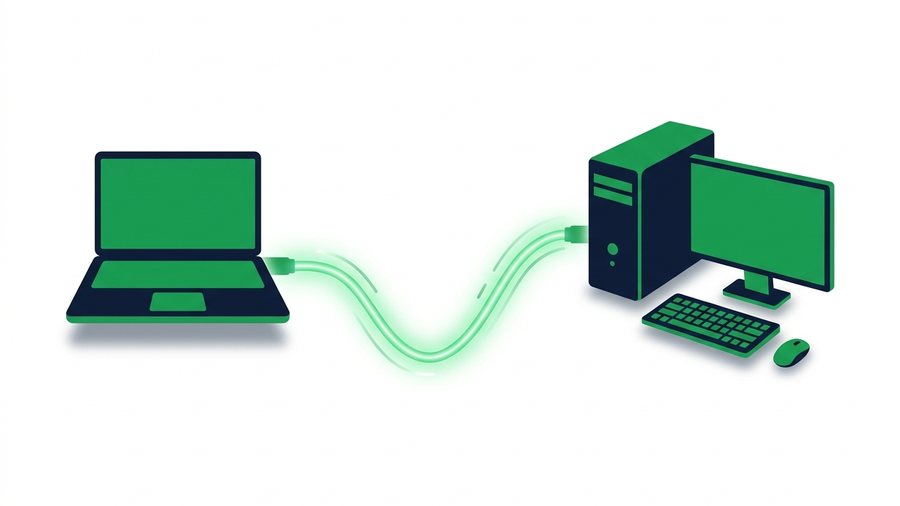
Moving files from a Mac to a Windows PC should be simple. It isn't, because the two systems disagree on almost everything: file systems, network protocols, even which sharing tools exist. AirDrop - The Mac's best trick - Flat-out ignores Windows machines.
The good news is that four methods work reliably, and at least one of them takes under a minute with zero setup. Which one you should use depends on how big the files are, how often you transfer, and whether the two computers sit on the same network.
Let's start with why the obvious option fails, then walk through each method that actually works.
Key takeaways
- AirDrop uses Apple's private AWDL protocol and has no Windows support, while Windows' Nearby Share talks only to Windows and Android.
- A browser share link is the fastest to set up - up to 100 files or 3 GB per transfer, with expiry choices of 1 hour, 12 hours, 24 hours, 3 days, or 7 days.
- For big local jobs, SMB over gigabit Ethernet moves around 100 MB/s, so a 10 GB folder copies in under 2 minutes.
- On a USB drive, format as exFAT - Both systems read and write it, and unlike FAT32 there is no 4 GB per-file cap.
Why AirDrop Won't Work (and What Will)
AirDrop is built on Apple's private AWDL protocol, and Apple has never released it for Windows. No third-party Windows app can genuinely join an AirDrop exchange - Anything claiming to is using a different transfer method under the hood. Windows' own Nearby Share has the mirror-image problem: it talks to Windows and Android, not Macs.
So cross-platform transfers come down to four real options: a browser share link, a shared network folder, a USB drive, or a cloud drive.
Method 1: Browser Share Link (Fastest to Set Up)
For everyday transfers - Documents, photo batches, design files - The quickest route is a temporary share link. Both machines have a browser, and that's all you need.
- On the Mac, open any browser and go to ShareIt.onl.
- Drag in your files - Up to 100 files or 3 GB total per transfer. No account needed.
- Pick an expiry: 1 hour, 12 hours, 24 hours, 3 days, or 7 days - or 30 days with a free sign-in.
- Copy the short link and open it on the Windows PC (or scan the QR code if the "PC" is actually a tablet or phone).
- Download. When the timer expires, the public link stops working automatically; normal files remain private in My Files.
This works across the room or across the world, needs no shared network, and involves no settings on either machine. It's the same approach we recommend for sharing files online in general. The 3 GB cap is the one real limit - For a 60 GB video project, keep reading.
Method 2: Shared Network Folder (SMB)
If both computers live on the same home or office network, macOS and Windows can talk directly using SMB - The Windows file-sharing protocol that Macs also speak fluently.
Share from Windows, connect from Mac:
- On Windows, right-click a folder, choose Properties, then the Sharing tab, and share it with your user account.
- Find the PC's local IP address (Settings > Network, something like 192.168.1.25).
- On the Mac, in Finder press Cmd+K and enter
smb://192.168.1.25. - Sign in with the Windows username and password, and the folder mounts like a local drive.
Share from Mac, connect from Windows: System Settings > General > Sharing > File Sharing, turn on "Windows File Sharing (SMB)" for your account, then on the PC enter \\192.168.1.30 (the Mac's IP) in File Explorer.
Speed and Setup Trade-offs
SMB is fast - On gigabit Ethernet expect around 100 MB/s, so a 10 GB folder moves in under 2 minutes. The downsides: first-time setup takes 10–15 minutes, both machines must be on the same network, and permissions or firewall issues can eat an afternoon.
Method 3: USB Drive (Watch the Format)
A USB stick or external SSD is dead simple - Until the drive that works fine on one machine refuses to accept files on the other. The culprit is the file system format:
| Format | Mac | Windows | Max File Size |
|---|---|---|---|
| exFAT | Read + write | Read + write | Effectively unlimited |
| NTFS | Read only | Read + write | Effectively unlimited |
| APFS / HFS+ | Read + write | Not recognized | Effectively unlimited |
| FAT32 | Read + write | Read + write | 4 GB per file |
The classic trap: most external drives ship formatted as NTFS, which a Mac can read but not write. You can copy files from the drive onto the Mac, but dragging files onto it silently fails.
Warning: The NTFS write failure is silent - The Mac may look like it copied the file when nothing actually landed on the drive. Always confirm the files open on the Windows side before you erase the originals.
The Fix: Format as exFAT
The fix: format the drive as exFAT, which both systems fully support. On the Mac, open Disk Utility, select the drive, click Erase, and choose exFAT (this wipes the drive, so move anything important off first). Avoid FAT32 unless you must - Its 4 GB per-file cap breaks on long videos and disk images.
Method 4: Cloud Drives
iCloud Drive, Google Drive, OneDrive, and Dropbox all run on both platforms. Install the client on both machines (or just use the web interface), and files sync automatically.
Cloud drives shine for ongoing sync - A folder you want mirrored on both machines all the time. They're clumsier for one-off transfers: you need an account, free storage is tight (5 GB on iCloud, 15 GB on Google Drive), big uploads sync on their own schedule, and transferred files pile up until you clean house. If you only need to send a large file once, a link that deletes itself is tidier.
Which Method for Which Job?
- A few files, right now, any distance: Browser share link - Under a minute, no setup.
- Sending to another person's PC: Share link again; you can't mount SMB across the internet safely.
- Daily transfers between your own two machines at home: SMB shared folder - Set it up once, enjoy 100 MB/s forever.
- A 60 GB video project or full backup: External SSD formatted exFAT.
- A folder that must stay identical on both machines: Cloud drive sync.
- No internet and no network: exFAT USB drive.
To move something across right now, open computer to computer transfer on the machine that needs the files and send its link to the other one. No shared network, no USB stick, and it works in both directions.