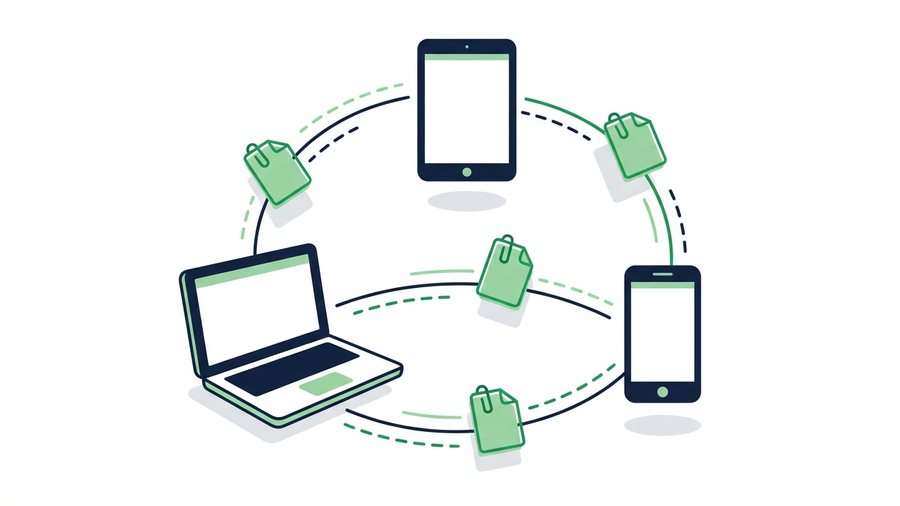
You have a file. Someone else needs it. Simple, right? Then email bounces it back for being too big, your chat app shrinks the photo to a blurry mess, and the person you're sending to doesn't have an account on your cloud drive.
There are five common ways to share files online, and each one shines in a different situation. Pick the wrong one and you waste 20 minutes. Pick the right one and you're done in 30 seconds.
This guide compares every major method side by side, then walks you through the fastest option: a direct share link that anyone can open with one click.
Key takeaways
- Only share links and email work with literally anyone, and email dies at 25 MB.
- A direct link with ShareIt.onl moves up to 100 files (3 GB total) with no accounts, and setup takes about 30 seconds.
- Cloud drives store 15 GB+ but often make the recipient sign in or "request access."
- Most messaging apps compress images by 70% or more, so send originals as files when quality matters.
The 5 Main Ways to Share Files
Before comparing numbers, here's a quick tour of your options.
1. Direct share links
You upload a file to a transfer service, get a short URL, and send that URL any way you like. The other person clicks and downloads. No accounts on either side. With ShareIt.onl, for example, you can upload up to 100 files (3 GB total), grab a short link plus a QR code, and set the link to expire after 1 hour, 12 hours, 24 hours, 3 days, or 7 days.
2. Email attachments
The classic. Great for a one-page PDF, terrible for anything big. Gmail and Outlook cap attachments at 25 MB and 20 MB, and other providers are similar - See our full breakdown of email attachment size limits.
3. Cloud storage drives
Google Drive, Dropbox, and OneDrive store files long-term and let you share them. Powerful, but there's friction: you need an account, recipients sometimes need one too, and permission settings trip people up constantly ("It says I need to request access...").
4. Messaging apps
WhatsApp, Telegram, Messenger, and iMessage handle files, but with catches. WhatsApp caps files at 2 GB but compresses photos and videos hard. iMessage tops out around 100 MB. And the recipient must use the same app.
5. USB drives and cables
Zero internet needed and fine for huge files, but only works in person. Buying, formatting, and physically handing over a drive is the slowest option by far for anyone who isn't in the same room.
Comparison Table: Which Method Wins?
| Method | Typical max size | Recipient needs account? | Speed to share |
|---|---|---|---|
| Direct share link | 3 GB free (ShareIt.onl) | No | ~30 seconds |
| Email attachment | 20-25 MB | No (just email) | 1-2 minutes |
| Cloud drive (Drive/Dropbox) | 15 GB+ (free tier storage) | Often yes | 3-5 minutes |
| Messaging app | 100 MB - 2 GB | Yes (same app) | ~1 minute |
| USB drive | Drive capacity (32 GB+) | No | Hours (in person) |
Two things jump out. First, only share links and email work with literally anyone - And email dies at 25 MB. Second, share links are the fastest path from "file on my device" to "file on theirs."
Tip: When your upload speed is the bottleneck, size the transfer to the job. A whole batch of phone photos fits in 3 GB with room to spare, so you rarely need to compress first, but an hour of 4K footage can eat the whole allowance on its own.
When to Use Each Method
No single method wins every time. Use this cheat sheet:
- Use a direct share link when you want speed, no sign-ups, and files up to a few gigabytes - Client deliverables, photo batches, zipped folders, one-off transfers.
- Use email when the file is under 20 MB and you're already writing the person an email anyway. One PDF contract? Attach it.
- Use a cloud drive when the same group needs ongoing access to files that change over time - A team folder, a shared spreadsheet, family photo archives.
- Use a messaging app for casual, small stuff between people who already chat there. Fine for a meme, wrong for a wedding video.
- Use USB when there's no reliable internet or the files are enormous (50 GB of raw video footage, for instance).
If your files run past 3 GB, you'll want a method built for heft. Our guide to how to send large files online covers those options in detail.
Step by Step: Sharing Files With a Link
Here's the full process using ShareIt.onl. Total time: about 30 seconds on a normal connection.
- Open the site. No sign-up, no app install, works on phone or desktop.
- Add your files. Drag and drop up to 100 files, 3 GB combined. A 400 MB video and 90 photos? Fine.
- Pick an expiry. Choose 1 hour, 12 hours, 24 hours, 3 days, or 7 days. After that, the public link stops working automatically while normal files remain private in My Files.
- Upload and copy the link. You get a short URL plus a QR code.
- Send the link anywhere. Paste it into email, WhatsApp, Slack, a text message - Or let someone scan the QR code from your screen.
The recipient clicks the link, sees a download page, and saves the files. That's it. If you're curious what's actually happening behind that URL, read what a file sharing link is and how it works. Not sure it will run on your setup? Our FAQ on which devices and browsers work confirms the platforms it supports.
Quick tips for smoother transfers
- Zip a folder before uploading so it arrives as one tidy file.
- Match the expiry to the job: 1 hour for a quick handoff, 7 days if the person might be slow to check.
- Test the link yourself in a private browser window before sending anything important.
Common Mistakes to Avoid
Emailing files that are too big. The email either bounces or silently converts to a cloud link with permission problems. Anything over 20 MB: use a share link instead.
Sharing a cloud file with the wrong permissions. "Request access" emails waste everyone's afternoon. If you do use Drive or Dropbox, double-check that the link is set to "anyone with the link."
Sending permanent links for one-time transfers. A file that needed to exist for a day shouldn't be downloadable for years. Expiring links clean up after themselves.
Trusting chat apps with photo quality. Most messengers compress images by 70% or more. Send originals as files via a link if quality matters.
A free account is where the limits get more generous - 20 GB of storage that outlives your links, plus 30-day links - and inviting a friend adds 1 GB permanently for both of you on top of that.