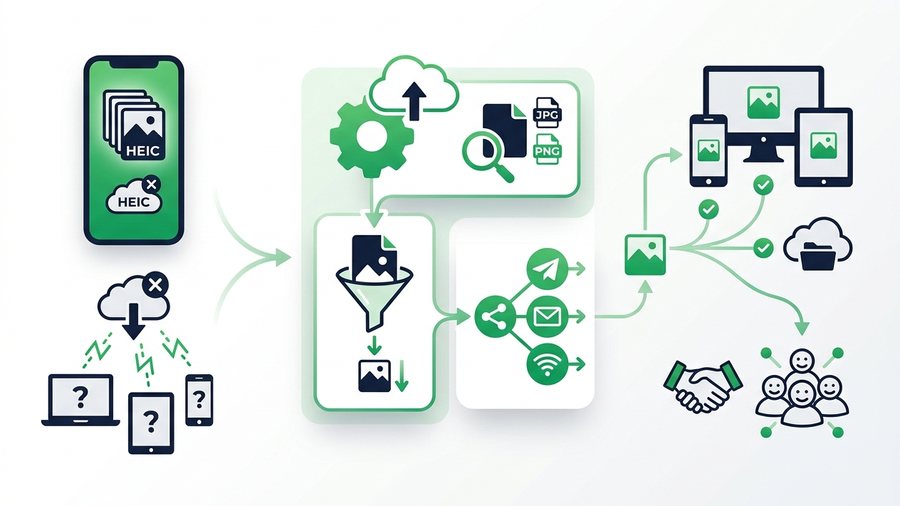
You send some photos from your iPhone, and the person on the other end replies that the files will not open. The culprit is usually HEIC, the format your iPhone quietly uses by default. It makes gorgeous, space-saving photos, but it also trips up a lot of devices and apps.
HEIC is not a problem you need to fear. Once you understand what it is and when to convert it, sharing becomes simple. Sometimes you keep the HEIC to save space, and sometimes you turn it into a JPG so everyone can open it.
This guide explains what HEIC is, why compatibility issues pop up, and how to compress or convert your photos before sharing them with a clean link that works on any device.
Key takeaways
- HEIC stores a photo in about half the space of a JPEG (a 4 MB JPEG might be just 2 MB as HEIC).
- Windows 11 needs a codec extension to open HEIC; Windows 10 and older often can't at all.
- Convert to JPG for non-Apple devices, websites, and printers, but know that conversion drops Live Photos and depth data.
- Share the result with a link (ShareIt.onl handles up to 100 files, 3 GB total) instead of email attachments.
What Is HEIC, Anyway?
HEIC stands for High Efficiency Image Container. It is Apple's default photo format on the iPhone, based on the HEIF standard. The big selling point is efficiency.
Roughly Half the Size of JPEG
A HEIC file stores the same photo as a JPEG in about half the space, thanks to newer, smarter compression. A photo that would take 4 MB as a JPEG might be only 2 MB as HEIC, with equal or better quality. Over hundreds of photos, that saves a lot of room on your phone.
It Does More Than JPEG
HEIC can hold extra tricks in a single file: multiple frames for Live Photos, depth data for portrait mode, and better handling of bright and dark areas. It is a genuinely modern format. The catch is that this newness is exactly why not everything can read it.
Why Some Devices Cannot Open HEIC
The frustration with HEIC almost always comes down to compatibility. The format is well supported inside Apple's world and shaky outside of it.
Windows and Android Gaps
Windows can open HEIC only if you install a specific codec pack, and older versions cannot at all. Many Android phones now support HEIC, but plenty of older or budget models still show an error or a blank thumbnail. Your recipient may have no idea why the file will not load.
Apps and Websites That Reject It
Even on capable devices, many web uploaders, email previews, older photo editors, and printing services do not accept HEIC. You upload a family photo to a print shop and it bounces the file. This is the single most common reason people convert HEIC to JPG before sharing.
Here is a quick view of where HEIC stands today.
| Platform or app | HEIC support | Notes |
|---|---|---|
| iPhone / iPad / Mac | Full | Native, no setup needed |
| Windows 11 | Partial | Needs a codec extension from the store |
| Windows 10 and older | Poor | Often will not open at all |
| Modern Android | Usually works | Newer phones only |
| Older Android | Spotty | Many models fail |
| Web uploaders and printers | Often rejected | JPG is the safe bet |
Converting and Compressing HEIC
When you know a photo is headed for a non-Apple device or a picky website, convert it to JPG first. And since HEIC files can still be large at full resolution, this is a good moment to compress too.
Do Both in One Step
A free tool like heic.now's HEIC compressor converts your HEIC photos to JPG and shrinks them at the same time, right in your browser. There is nothing to install and no account to create. The flow looks like this:
- Open the tool in any browser on any device.
- Drop in your HEIC files, one or several at once.
- Let it convert each one to a standard JPG.
- Preview to confirm the photos look sharp.
- Download the ready-to-share files.
Now your photos open everywhere, and they take up less space during transfer. If you want the bigger picture on shrinking files of any type, our guide on how to compress files before sharing is a helpful next read.
Tip: Keep your original HEIC files after you convert, don't delete them. The JPG copy is the sharing version, but the HEIC still holds your Live Photo motion and depth data if you ever want to reshare within Apple's ecosystem.
When You Just Need Smaller, Not Converted
If your recipient uses Apple devices and you only want to save transfer time, you can keep the HEIC format and simply compress. The photos stay small and native, and everyone can still open them.
When to Keep HEIC vs Convert to JPG
You do not have to convert every photo. Use this simple guide to decide.
Keep HEIC When...
- Everyone involved uses iPhones, iPads, or Macs.
- You want to preserve Live Photos or depth data.
- You are saving storage space on your own devices.
- You are backing photos up within Apple's ecosystem.
Convert to JPG When...
- The recipient uses Windows or an older Android phone.
- You are uploading to a website, printer, or older app.
- You are not sure what device will open the file.
- You need the widest possible compatibility, everywhere.
When in doubt, convert. JPG opens on virtually everything, so it is the safe default for sharing with people you do not know well. For a deeper look at moving full-quality images, see our guide on sending high-resolution photos.
Then Share Your Photos With a Link
Once your files are converted or compressed, you need a reliable way to deliver them. Email attachments choke on batches of photos and often strip or block HEIC entirely. A share link avoids all of that.
With ShareIt.onl you can upload up to 100 files, totaling 3 GB, straight from your browser and get a link instantly. No sign-up and no app on either end. It works whether you kept your files as HEIC or converted them to JPG, so your recipient just clicks and downloads.
Link Features That Make Sharing Easy
| Feature | Why it helps |
|---|---|
| Expiring link | Files disappear on their own, keeping things tidy |
| QR code | Scan to grab photos on a phone instantly |
| Optional password | Keep private photos for the right eyes only |
| No account | Skip logins on both sides |
Because the link handles delivery, your recipient never fights with format errors or attachment limits. For more on moving big batches, browse our guide on sending large files online.
Your HEIC Sharing Checklist
Run through this before you send:
Sharing plain JPGs instead of HEIC? Our companion guide on how to share large JPG files covers sizes, quality settings, and when to send full-resolution originals.