If you have switched between an iPhone and a Windows laptop, you have probably wished for AirDrop on the PC. AirDrop is fast, wireless, and simple, so it is easy to assume Windows has the same button hidden somewhere. It does not. AirDrop is built only for Apple devices, and there is no official version for Windows.
The good news is that Windows has its own tools that do almost the same thing, plus a couple of universal tricks that ignore the whole platform question. This guide explains why AirDrop stays on Apple, walks through the real Windows equivalents step by step, and shows you the one method that works between any two devices no matter what they run.
By the end you will know exactly which tool to reach for depending on whether your devices are Android, Windows, Apple, or a mix. Let's start with why the AirDrop button will never appear on your PC.
Key takeaways
- AirDrop is Apple-only; there is no official version for Windows
- For Android-to-Windows, Quick Share is the closest match; two Windows PCs use built-in Nearby Sharing
- A browser link with a QR code works between any two devices, even on different networks
- ShareIt.onl sends up to 100 files / 3 GB with no app and no sign-up
Why AirDrop Does Not Work on Windows
AirDrop is Apple's private technology. It uses a mix of Bluetooth to find nearby devices and Wi-Fi Direct to move the data quickly, all tied together with software that only ships inside macOS, iOS, and iPadOS. Apple has never released it for other systems.
That means an iPhone can AirDrop to a Mac or iPad instantly, but it cannot AirDrop to a Windows PC or an Android phone at all. Any app claiming to be "AirDrop for Windows" is really a different tool with a similar goal. Some are good, but none are the actual AirDrop protocol. So the question is not how to get AirDrop on Windows, but which equivalent to use.
The Real Windows Equivalents
Windows and Android have built their own quick-share tools. Here are the main ones and how they compare.
Quick Share for Windows
Google's Quick Share (formerly Nearby Share) now has an official Windows app. It lets an Android phone and a Windows PC send files back and forth wirelessly, much like AirDrop does for Apple. It is the closest match if your phone is Android.
Windows Nearby Sharing
Windows has a built-in Nearby Sharing feature for PC-to-PC transfers over Bluetooth and Wi-Fi. It is handy between two Windows computers on the same network, but it does not talk to phones, so it is narrower than Quick Share.
LAN web apps
Tools in the style of Snapdrop or LocalSend open in a browser or a small app and move files between devices on the same Wi-Fi network. They are cross-platform and need no accounts, which makes them a flexible bridge, though large files can be flaky and both devices must be on the same network.
Comparison: AirDrop Equivalents for Windows
| Method | Works between | Install needed? | Same network only? | Practical size |
|---|---|---|---|---|
| AirDrop | Apple to Apple only | Built-in | Nearby | Large (GBs) |
| Quick Share | Android and Windows | App on PC | Nearby | Large (GBs) |
| Nearby Sharing | Windows to Windows | Built-in | Nearby | Large (GBs) |
| LAN web apps | Any to any (same Wi-Fi) | Usually no | Yes | Medium, can be flaky |
| Browser link + QR (ShareIt.onl) | Any to any, anywhere | No | No | 100 files / 3 GB |
Notice the last row. It is the only method that works between any two devices, even when they are not on the same network or even in the same building.
The Universal Method: A Browser Link and QR Code
When your devices do not match, the simplest fix is to stop fighting platforms and use a browser link. Every phone, tablet, and computer has a web browser, and a link does not care whether it is opened on an iPhone, an Android, or a Windows PC.
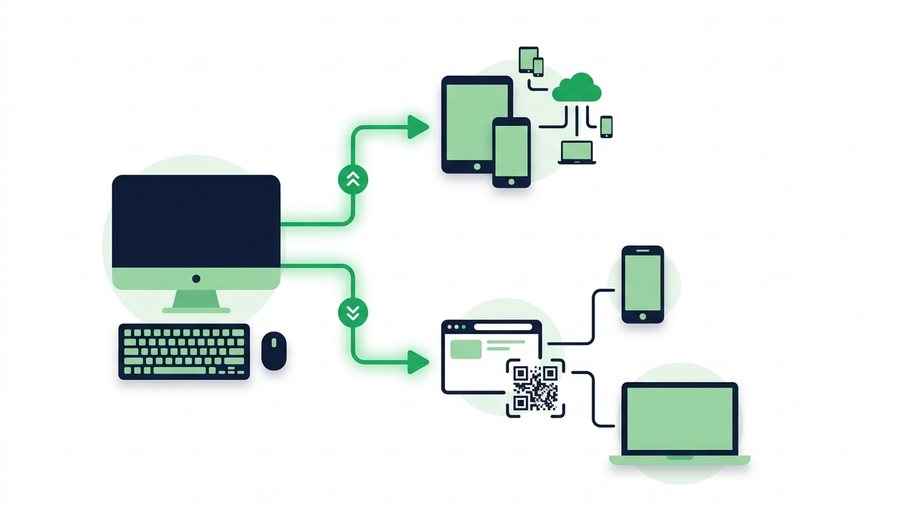
ShareIt.onl works this way. You upload up to 100 files or 3 GB in a browser, get a link, and share it. It even shows a QR code, so your Windows PC can display the code and your iPhone can scan it with the camera to jump straight to the download.
There is no app to install and no account to create on either side. You can also add an optional password and choose how long the link lasts, from 1 hour to 7 days, after which it disappears.
Tip: When both devices are in the same room, display the QR code on your PC screen and scan it with your phone's camera. The download link opens instantly, with nothing to type.
AirDrop is still quicker for a huge video between two nearby Apple devices, because nothing has to upload first. But a 3 GB share covers most full videos and photo batches, and mismatched devices are no problem. Only a project bigger than 3 GB needs another route - see how to send large files online.
Step by Step: Send From iPhone to Windows
Here is the browser method in practice, using the most common mismatch.
On the iPhone
- Open your browser and go to the home page.
- Tap to add up to 100 files or 3 GB total from your photos or files.
- Pick an expiry time, add a password if the files are private, and create the link.
- Copy the link or show the QR code on screen.
On the Windows PC
- Open any browser and paste the link, or point your phone's camera at the PC screen if the PC generated the code.
- If you set a password, enter it.
- Download the files. That is it.
The same steps work in reverse, and between any two devices. For a broader look at moving files across systems, our transfer files hub has device-specific walkthroughs, and our roundup of the best free file sharing services compared covers cloud and P2P options too.
Choosing the Right Tool for Your Devices
Match the method to your hardware and you will never be stuck.
If both devices are Apple, just use AirDrop; nothing beats it there. If your phone is Android and you are sending to a Windows PC nearby, install Quick Share for the fastest wireless transfer. If you are moving files between two Windows PCs, Nearby Sharing is already built in. And whenever the devices do not match, or they are not in the same place, a browser link with a QR code is the reliable universal answer.
| Your two devices | Best method | Backup method |
|---|---|---|
| iPhone and iPad | AirDrop | Browser link + QR |
| Android and Windows PC | Quick Share | Browser link + QR |
| Windows PC and Windows PC | Nearby Sharing | LAN web app |
| iPhone and Windows PC | Browser link + QR | LAN web app |
| Android and iPhone | Browser link + QR | LAN web app |
| Devices far apart | Browser link + QR | Cloud drive |
The key insight is that "AirDrop for Windows" is really a category, not a single app. Pick the equivalent that fits your devices, and keep the browser-link trick in your back pocket for every awkward mix in between.
The closest like-for-like on Windows is computer to computer transfer, and for a phone in the room, phone to computer transfer.