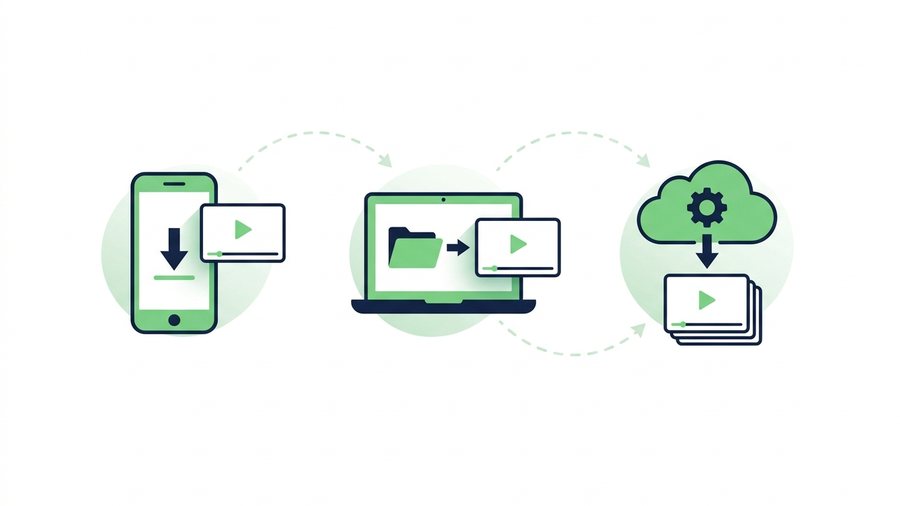
You posted a great clip, and now you want the file back - Maybe to re-edit it, repost it somewhere else, or just keep it safe. Sounds easy, right? The catch is that the copy TikTok hands you through the app has a moving watermark stamped on it. That's fine for casual reposts, but it looks messy in a portfolio, a paid deliverable, or a cross-post to another platform.
The good news: you almost always have a cleaner copy already, and TikTok also gives you an official way to pull down every video on your account. This guide walks through all three routes, shows you which one gives the truly clean file, and helps you grab a copy before you delete a post - Because once it's gone, it's gone.
Everything here uses official, above-board methods. No sketchy sites, no logins to random tools. Just the buttons TikTok gives you and the files your own phone saved along the way.
Key takeaways
- The in-app Save video button stamps a moving watermark and re-compresses the clip, so it lands a step below your original.
- Your original export sits in your camera roll with no watermark if "Save to device" was on (it's on by default for most users) - The cleanest copy you'll ever have.
- Download Your Data exports every posted video, usually watermark-free, but takes a few days and the ZIP link expires after 4 days.
- Once you delete a post it's gone from TikTok's servers for good, so always save the file before you tap delete.
The In-App Save (Fast, but Watermarked)
The quickest copy is the one built into TikTok. Open your video, tap the Share arrow, and choose Save video. TikTok writes an MP4 straight to your camera roll in a few seconds.
The trade-off is the watermark. Every video saved this way carries the animated TikTok logo and your @username, and the logo bounces between corners so you can't crop it out cleanly. The clip is also re-compressed for the app, so it's usually a step below your original in sharpness.
When the watermarked copy is fine
- You're reposting the same clip to your own Story or another feed casually.
- You just want a personal backup on your phone.
- The watermark actually helps - It credits you when the clip travels.
When it isn't
- You're sending a deliverable to a brand or client.
- You want to cross-post to Reels or Shorts, which quietly demote videos that show a rival platform's watermark.
- You need the crispest possible quality for re-editing.
If any of those apply, skip the in-app save and reach for your original export instead.
Why Your Original Export Is the Real Clean Copy
Here's the part most people forget: when you finished editing a TikTok, the app saved a copy to your phone at the moment you posted - With no watermark. If you left "Save to device" turned on (it's on by default for most users), that pristine file is sitting in your camera roll right now.
That original is the best version you'll ever have. It has no logo, no username stamp, and the full quality you exported at. It's the file a brand wants, the file that cross-posts cleanly, and the file worth archiving.
To make sure future posts get saved this way, open Settings and privacy → Content preferences (or the posting screen) and confirm Save to device is on. For a deeper walkthrough of protecting these master files, see how to back up your TikTok drafts and originals. And if you want the full breakdown of what the watermarked download actually contains versus your export, download your own TikTok videos covers it frame by frame.
Download Your Data: Every Video at Once
What if you never saved the originals, or you're switching phones and want everything? TikTok's Download Your Data tool exports your whole account, videos included.
Go to Settings and privacy → Account → Download your data. Choose the All data file type, request the export in TXT or JSON format, and wait - TikTok emails you (and posts in-app) when the archive is ready, usually within a few days. Download the ZIP within four days before the link expires.
A few things to know about this route:
- The videos inside are your posted versions, generally without the animated watermark, which makes this a solid recovery option.
- It grabs everything: posts, profile info, messages, and settings - Not just clips.
- Big accounts get big files, so download over Wi-Fi.
- It's slower than a one-tap save, so use it for bulk backups, not a single video you need in five minutes.
Save It Before You Delete It
This is the mistake that stings the most. You clean up your profile, delete an old post, and a month later realize you wanted that clip - But it's gone from TikTok's servers, and if you never saved the original, there's no getting it back.
Build a simple habit: secure the file before you tap delete. Run down this quick checklist first.
Warning: Deleting a TikTok removes it from TikTok's servers permanently, and there is no in-app undo. If you never saved the original and skipped a data export, that clip cannot be recovered by anyone.
Thirty seconds of saving beats a permanent loss.
Comparing Your Three Sources
Each method lands at a different spot on the speed-versus-quality scale. Here's how they stack up.
| Source | Watermark? | Quality | Speed | Best for |
|---|---|---|---|---|
| In-app Save video | Yes, animated | Re-compressed | Seconds | Quick personal backups, casual reposts |
| Original export (camera roll) | No | Full, as exported | Instant if saved | Clients, cross-posting, archiving |
| Download Your Data | No (posted version) | As posted | Days | Bulk backups, account moves, recovery |
The pattern is simple: your original export wins on quality, the in-app save wins on speed, and Download Your Data wins when you need everything or the original is gone.
Handing Off a Clean Copy the Right Way
Once you've got the clean file, don't ruin it by texting it. Messaging apps crush video - A sharp 1080p clip can arrive as a soft 480p blur, watermark-free but ugly. To hand a client, editor, or collaborator the exact file you saved, use a transfer link that keeps quality intact. On ShareIt.onl's video sharing page you upload up to 100 files or 3 GB free, with no sign-up, and get an expiring link plus a QR code the recipient can scan off your screen. A 30-second 1080p original usually runs 40-80 MB, so even a whole batch of clips fits comfortably in one link.
Planning to bounce that clean copy over to another feed or hand it back to followers? Our guide on how to repost and share TikTok videos covers every official route.
A word on third-party "downloader" sites
You'll see sites promising to grab any TikTok without a watermark. Skip them - Downloading other people's videos through third-party tools violates TikTok's Terms of Service and usually infringes copyright. For your own content you never need them anyway: your original export and Download Your Data already give you clean files you actually own.