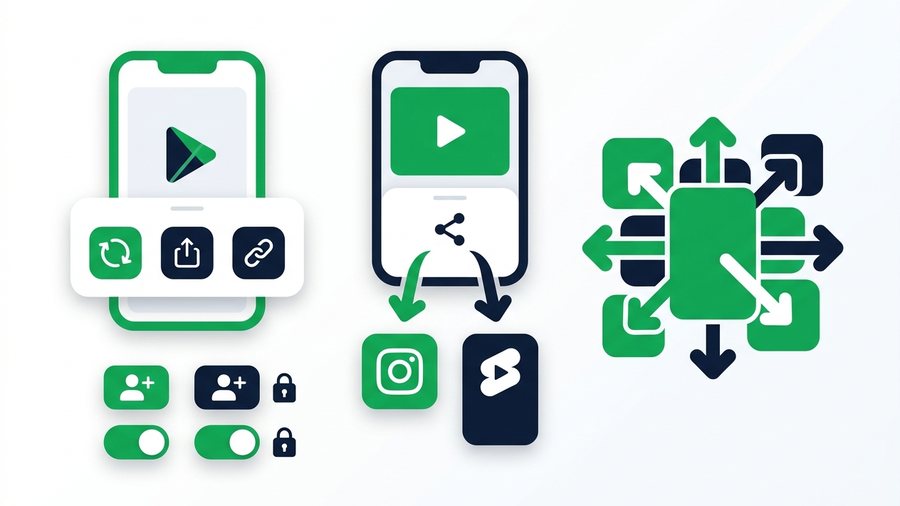
There's a difference between reposting a TikTok and sharing one, and mixing them up leads to a lot of confusion. Reposting recommends a video to your followers without copying it to your profile. Sharing sends someone a link or the file directly. TikTok gives you official tools for both, plus a whole set of permission toggles that decide who can build on your videos and who can save them.
This guide sorts it all out. You'll learn exactly what the Repost button does, how the share sheet and copy-link options work, how Stitch and Duet permissions are controlled, and how to cross-post your own clips to Instagram Reels or YouTube Shorts without tripping the watermark penalty. There's also a settings table so you can see, at a glance, which toggle controls what.
Everything here is an official method - The buttons TikTok gives you, used the way they're meant to be used. No third-party tricks required.
Key takeaways
- Repost recommends a video to your followers' feeds without adding it to your profile grid; Share simply sends a link.
- Stitch lets others use up to 5 seconds of your video and Duet places their clip beside yours - Both add automatic credit and are gated at the account and per-video level.
- Private accounts can't be Dueted or Stitched at all, and their download button is locked off permanently.
- Cross-post your original export, never the watermarked save, because Reels and Shorts quietly demote clips showing a rival platform's logo.
Repost vs. Share: Two Different Things
Tap the Share arrow on any video and you'll see both options side by side, so it's worth knowing what each one actually does.
- Repost recommends the video to your followers' For You feeds. It shows up with a "so-and-so reposted" tag, and it does not land on your profile grid. Tap Repost again to undo it.
- Share sends the video out - As a link, a direct message, or a handoff to another app. The video stays on the original creator's profile; you're just pointing people to it.
Reposting is TikTok's built-in way to boost content you like without pretending you made it. Attribution stays with the original creator, which keeps things fair.
Using the Share Sheet and Copy Link
The share sheet is your hub for everything outbound. Tap the arrow and you get:
- Copy link - Puts a short URL on your clipboard to paste anywhere. Anyone who opens it sees the video, no TikTok account needed, as long as it's public.
- Send to - DM the video to TikTok friends (mutual followers, with age limits).
- Share to other apps - WhatsApp, Instagram, SMS, email, and anything installed on your phone. This sends the link, not the video file.
- Repost - The feed recommendation covered above.
The private-account catch
Links to videos from private accounts only open for approved followers. If a friend says your link "doesn't work," that's almost always why - Not a broken URL. For a deeper walkthrough of every send route and the privacy limits behind them, see how to share TikTok videos.
Stitch and Duet Permissions
Stitch and Duet are official ways for other people to build on your video - Duet places their clip beside yours, and Stitch lets them use up to 5 seconds of your video to open theirs. Both include automatic attribution back to you, and both are permission-gated in two places.
- Account level: Settings and privacy → Privacy → Duet (or Stitch) → Everyone, Followers you follow back, or Only you.
- Per video: when posting, tap More options to allow or block Duet/Stitch on that specific clip.
If a Duet or Stitch button is grayed out, the creator turned it off - There's no workaround. And private accounts can't be Dueted or Stitched at all, regardless of settings.
Controlling Downloads on Your Videos
Whether people can save your video as a file is up to you, controlled by the Downloads toggle.
- Account level: Settings and privacy → Privacy → Downloads → On or Off.
- Per video: you can also disallow downloads on an individual post.
When downloads are on, viewers can save a watermarked MP4 of your clip. When off, the Save button disappears - Though screen recording always exists, so nothing public is truly copy-proof. Private accounts have downloads locked off permanently. Curious what that saved file actually contains, watermark and all? See download your own TikTok videos.
Note: Turning off downloads hides the Save button, but it can't stop a determined viewer from screen recording. Treat the toggle as friction, not true protection, and never post anything you'd be unwilling to see copied.
Cross-Posting to Reels and Shorts
Want your TikTok on Instagram Reels or YouTube Shorts too? You can, but there's one big rule: don't cross-post the watermarked version. Instagram and YouTube both quietly demote videos that show a rival platform's logo, so a TikTok-stamped clip reaches fewer people on their apps.
The fix is to upload your original export - The clean, no-watermark file your phone saved when you posted. Here's the clean cross-post routine.
Not sure where your clean originals live or how to grab them? How to download TikToks you posted covers every route to a clean copy. And if your content is a swipeable image set rather than a clip, TikTok Photo Mode explained walks through sharing those the same way.
Share Settings at a Glance
Nine times out of ten, one of these rows answers a "why can't I share or repost this?" question.
| Setting | Where to find it | Options | Private account |
|---|---|---|---|
| Repost | Share sheet → Repost | On / Off (toggle) | Same |
| Copy link | Share sheet → Copy link | Always available | Works for approved followers only |
| Downloads | Privacy → Downloads | On / Off | Always off |
| Duet | Privacy → Duet (+ per video) | Everyone / Followers you follow back / Only you | Not available |
| Stitch | Privacy → Stitch (+ per video) | Everyone / Followers you follow back / Only you | Not available |
| Direct messages | Privacy → Direct messages | Mutual followers (varies by age) | Same |
| Who can view a video | Per post → Who can watch this video | Everyone / Followers / Friends / Only you | Followers max |
When You Need to Send the File, Not a Link
Links are perfect for pointing someone at a post. But sometimes you need the actual video file - An editor wants your clip, a brand asks for the deliverable, or you're sending to someone who doesn't use TikTok. Texting it is the worst option, because messaging apps compress hard and turn a crisp 1080p clip into a blurry 480p one.
Instead, share your original export with a proper transfer link. On ShareIt.onl's video sharing page you upload up to 100 files or 3 GB free, with no account, and get an expiring link plus a QR code someone can scan right off your screen. A 45-second 1080p original usually runs 50-90 MB, so dozens of clips fit in one share with room to spare, and the link cleans itself up after it expires.
A note on third-party download sites
You'll find sites promising to grab anyone's TikTok "without watermark." Don't use them - Downloading other people's content through third-party tools violates TikTok's Terms of Service and usually infringes copyright, and for your own videos it's pointless anyway. Your original export is already clean and yours to share.