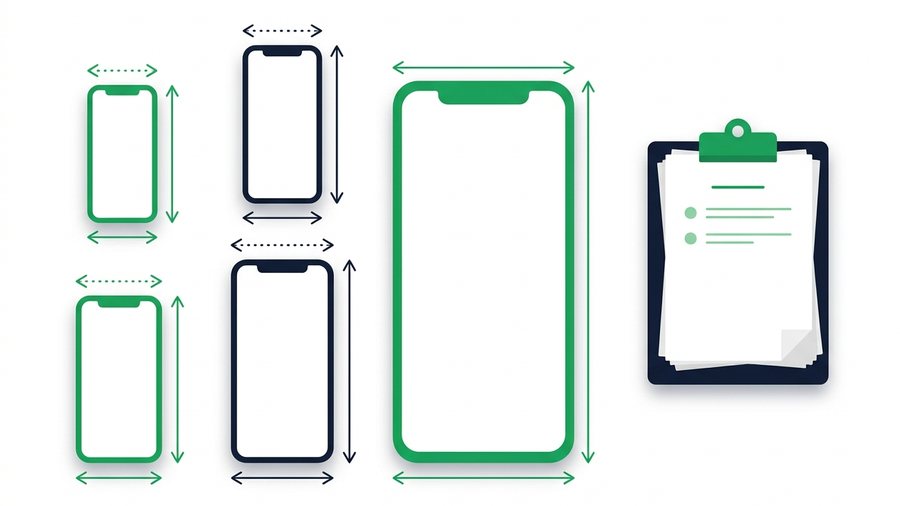
Upload a video to Instagram and the app quietly re-encodes it. If your file matches Instagram's preferred specs, that re-encode is gentle. If it doesn't, you get blurry motion, crushed colors, and cropped edges. Knowing the exact limits is the difference between a reel that looks sharp and one that looks like it was filmed through a window.
The numbers also change depending on where you post. A reel can run up to 15 minutes, but a story chops video into 60-second segments. Feed posts prefer a 4:5 frame, while reels want 9:16. Get the format wrong and Instagram crops or letterboxes your work without asking.
This guide collects every current limit in one table, explains what Instagram's compression actually does, and shows the export settings that hold up best. We finish with the honest answer for when compression is unacceptable: send the original file directly instead of through the app.
Key takeaways
- Reels run up to 15 minutes (3 minutes if recorded in-app), and the max file size is 4 GB across every format.
- Reels over 90 seconds get less reach, so many creators still cut to 90 seconds or under.
- Instagram serves reels at roughly 2-5 Mbps, so a 50 Mbps camera file loses over 90% of its data.
- Export H.264 at 1080p and 8-12 Mbps, then turn on "Upload at highest quality" to keep reels sharp.
The Specs Table: Every Format at a Glance
Here are Instagram's video limits as of mid-2026. Bookmark this table; it answers 90% of "why does my video look wrong" questions.
| Format | Max length | Aspect ratio | Recommended resolution | Max file size |
|---|---|---|---|---|
| Reels | 15 min (3 min recorded in-app) | 9:16 | 1080 x 1920 | 4 GB |
| Stories | 60 s per segment (longer clips auto-split) | 9:16 | 1080 x 1920 | 4 GB |
| Feed video (posts as a reel) | 15 min | 4:5 or 1:1 in feed preview | 1080 x 1350 | 4 GB |
| Carousel video | 60 s per clip, up to 20 slides | 1:1 or 4:5 | 1080 x 1350 | 4 GB |
| Live | 4 hours | 9:16 | 720p+ stream | n/a |
A few rules hide behind those numbers:
- Reels over 90 seconds are less likely to be recommended to non-followers, so many creators still cut to 90 s or under for reach.
- Stories split automatically. Upload a 3-minute clip and Instagram slices it into three 60-second cards; viewers can tap past any of them.
- Feed videos post as reels. Since 2023, any video you share to the feed becomes a reel, but you control the 4:5 or 1:1 crop shown in the feed grid preview.
Aspect Ratios: 9:16, 4:5, and 1:1 Explained
Instagram supports three shapes, and each surface has a favorite.
9:16 vertical (1080 x 1920)
Full-screen portrait. Use it for reels and stories. Keep text and faces inside the middle of the frame, because the bottom roughly 420 pixels get covered by captions and buttons, and the top 220 pixels sit under your username.
4:5 portrait (1080 x 1350)
The tallest shape allowed in the feed grid preview. It takes up 25% more screen than a square, which is why most photographers and brands default to it.
1:1 square (1080 x 1080)
The safe middle ground, especially for carousels that mix photos and video. Nothing gets cropped when viewers see it in the grid.
Anything outside these ratios gets cropped or padded. A 16:9 landscape clip uploaded as a reel ends up as a small strip with huge bars above and below it.
How Instagram Compresses Your Video
Every upload goes through Meta's transcoding pipeline. Three things happen:
- Resolution caps. Anything wider than 1080 pixels is scaled down. A 4K clip becomes 1080p before anyone sees it.
- Bitrate cuts. Instagram serves reels at roughly 2-5 Mbps depending on the viewer's connection. Your 50 Mbps camera file loses over 90% of its data.
- Re-encoding. Files are converted to H.264, so uploading an already-compressed low-bitrate file means compressing compression, which is where visible blockiness comes from.
You cannot skip this pipeline, but you can feed it a file it handles well.
Export Settings That Survive Best
Give Instagram a clean, high-bitrate source in the codec it already uses. From Premiere, CapCut, DaVinci Resolve, or your phone editor, export with these settings:
- Container: MP4 (MOV also works)
- Codec: H.264, High profile
- Resolution: 1080 x 1920 for reels and stories, 1080 x 1350 for feed
- Frame rate: 30 fps (match your source; 60 fps is accepted)
- Bitrate: 8-12 Mbps for 1080p, VBR 2-pass if available
- Audio: AAC, 128 kbps or higher, 48 kHz
Tip: If your editor offers it, export with VBR 2-pass. It spends bitrate where the motion is, so fast action survives Instagram's re-encode better than a single-pass file of the same size.
Two extra tips: upload over Wi-Fi, because Instagram may compress harder on weak cellular connections, and turn on Upload at highest quality under Settings, then Media quality. That toggle alone fixes many "my reel looks soft" complaints.
When the Original File Actually Matters
Instagram's compressed copy is fine for followers scrolling on phones. It is not fine when a client needs the ad file, a friend wants your wedding clip for a TV slideshow, or you're moving projects between editors. In those cases, send the source file, not a screen recording and not the downloaded reel.
Texting fails here too, since messaging apps compress video almost as hard as Instagram does. Instead, upload the original to ShareIt.onl, which takes up to 100 files or 3 GB per batch with no account, and hand over an expiring link or QR code. The recipient gets the exact bytes you exported. A finished reel export usually runs 50 to 200 MB, so dozens of clips fit in one share, and 3 GB covers roughly 20 minutes of high-bitrate 1080p footage. For collections bigger than that, see the best ways to share large videos, and for general workflows check the video sharing tool.
By the way, this only applies to your own footage. Third-party downloader sites that rip other people's reels violate Instagram's Terms of Use and usually copyright law, so this guide covers only official methods. If you want your own content back, use Instagram's official export.