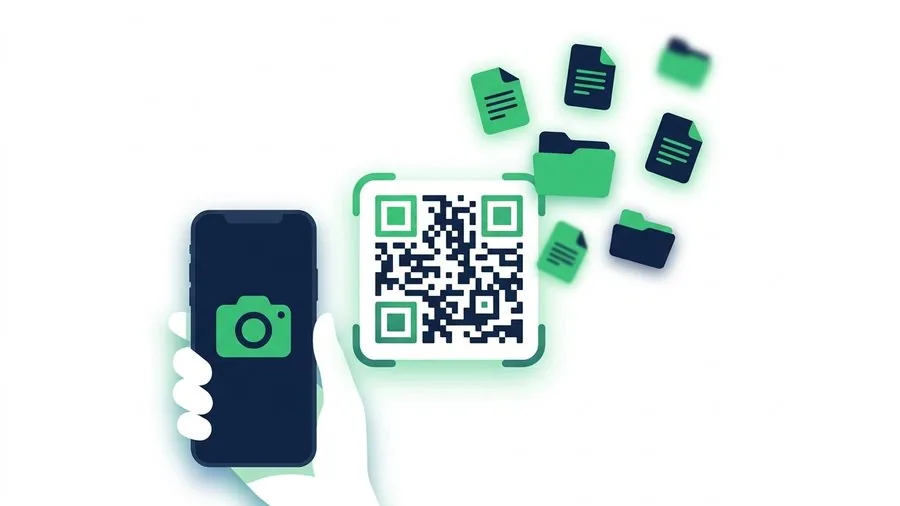
A camera cannot point at the screen of the phone holding it. When a QR code arrives in a message, email or screenshot on that same phone, the normal camera instructions are incomplete. The reliable solution is to open the original link or let the phone recognise the code inside an image.
TL;DR: Look for a clickable link or Copy button first. If you only have the code, save or screenshot it, open the image in Photos or your gallery, and use the built-in recognition control. For ShareIt.onl transfers, the copied link and QR code open the same download page through the device-transfer hub.
Key points
- A QR code usually represents a link rather than containing the file itself.
- Opening the original link is simpler than scanning an image of it.
- iPhone and Android can recognise many QR codes inside saved images.
- Menu names differ by phone, operating-system version and gallery app.
- Check the destination address before opening an unfamiliar code.
Use the simplest available route
| What you have | Best action |
|---|---|
| A message with a clickable link | Tap the link |
| A ShareIt result with Copy | Copy and open the address |
| A saved QR image on iPhone | Open in Photos and use detected text or link controls |
| A saved QR image on Android | Open with Photos, gallery recognition or Lens |
| A code on another screen | Use the ordinary camera scanner |
Apple's QR scanning instructions cover Camera and Code Scanner for a code on another surface. For a same-screen code, you need image recognition because the camera cannot view its own display.
First look for the original link
A file-sharing QR code is a visual version of a web address. If the message or page includes Open, Copy link or Share, use that control instead of taking a screenshot. It is faster and avoids recognition errors.
On a ShareIt.onl result, both forms lead to the same page:
copied URL ---------> download page
                        ^
                        |
QR representation -----+
The QR file-sharing guide explains why the code does not grow with the file and why it stops working when the underlying link expires.
Open a saved QR code on iPhone
- Save the image or take a screenshot.
- Open it in Photos.
- Press and hold the recognised QR area or use the detected-content control if shown.
- Preview the destination address.
- Open the link only if the domain and context are expected.
If Photos does not detect it, crop away surrounding clutter and keep the full square plus its light margin. Do not crop through the corner markers.
Open a saved QR code on Android
- Save the image or take a screenshot.
- Open it in Google Photos or the phone maker's gallery.
- Choose Lens, Scan QR or the recognition control offered by that app.
- Review the detected URL.
- Open it in the browser.
Google explains how Lens can search what appears in an image in its Google Photos Lens help. The exact button may differ on Samsung, Pixel and other Android phones.
Safety check before opening
A QR code hides the written address until it is recognised. Preview the URL and look for a familiar domain, HTTPS and the expected context. If a stranger sent the image or the page asks for credentials unrelated to the transfer, stop.
For sensitive material, use the controls described in secure file transfer. A password can protect a file link if the address is forwarded, but it cannot make an unrelated QR destination trustworthy.
Same-screen QR checklist
| Question | Your answer |
|---|---|
| Original clickable link available | Yes / No |
| Image saved or screenshot taken | Yes / No |
| Phone type | iPhone / Android |
| Detected domain | |
| Domain expected | Yes / No |
Read next
- How to share files with a QR code
- What is a file-sharing link?
- Is it safe to share files online?
- How to transfer files between two phones
FAQ
Can a phone scan a QR code on its own screen with Camera?
Not directly. Save or screenshot the code and use image recognition, or open the original clickable link.
Does the QR code contain the whole file?
Usually no. A file-sharing QR code contains the address of the download page.
Why does the saved image not recognise the code?
The code may be cropped, blurry, distorted or missing its light margin. Use the original image when possible and crop surrounding clutter without cutting the square.