You attach the file, click send, and email bounces it back: "The attachment size exceeds the allowable limit." It's one of the most common roadblocks in daily work, and it stops people cold. Email was built for short messages, not for hauling around big videos, design files, or photo folders.
The limits are lower than most people expect. Gmail stops at 25 MB, Outlook.com at 20 MB, and plenty of workplace mail servers cap out at 10 MB. Worse, attachments get inflated by about a third during transfer, so a file that looks like it fits often doesn't.
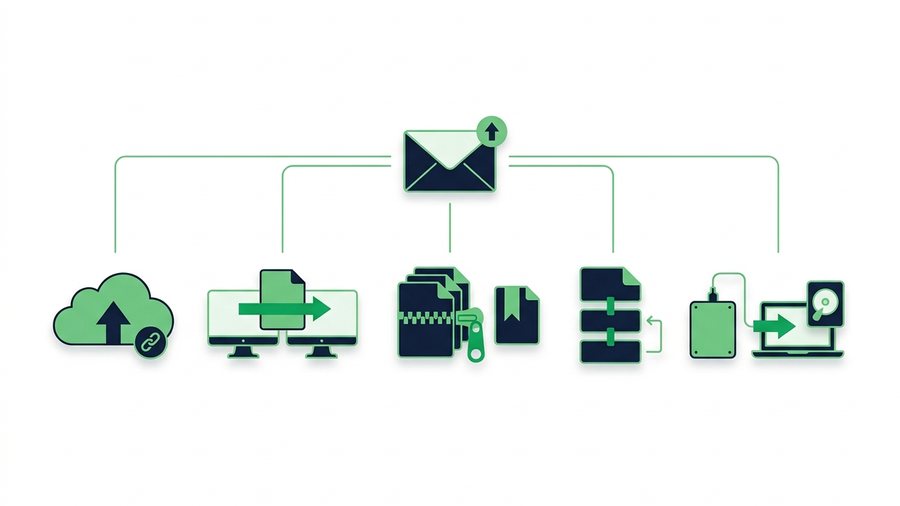
The fix is simple once you know the options. This guide covers five proven ways to email a file that's too big, walks through the steps for each, and shows you which one to reach for depending on the file and who's receiving it.
Key takeaways
- Gmail caps attachments at 25 MB, Outlook.com at 20 MB, and many work servers at just 10 MB.
- Base64 encoding inflates every attachment by about 33%, so a 20 MB file travels as roughly 27 MB and can bounce even when it looks under the limit.
- The zero-friction fix is to paste an expiring share link in the email body - The message stays tiny and no size cap applies.
- ShareIt.onl sends up to 100 files (3 GB total) free with an expiry of 1 hour to 7 days and no account needed on either end.
Why Email Rejects Big Files
Every email provider sets a hard cap on attachment size. That cap covers the whole message, including any encoding overhead. Because email converts attachments into text (a process called Base64 encoding), your file swells by roughly 33% in transit. A 20 MB file travels as about 27 MB, which is why a file "under the limit" can still bounce.
| Provider | Attachment limit | Effective real-file size |
|---|---|---|
| Gmail | 25 MB | ~18 MB after encoding |
| Outlook.com | 20 MB | ~15 MB |
| Yahoo Mail | 25 MB | ~18 MB |
| iCloud Mail | 20 MB | ~15 MB |
| Many work servers | 10 MB | ~7 MB |
We break down every provider's exact cap and the encoding math in our guide to email attachment size limits. The short version: assume your real usable limit is smaller than the number on the label.
Five Ways to Email a Large File
You have five practical routes. Each one gets a big file to your recipient without hitting the bounce.
| Method | Best for | Recipient needs account? | Effort |
|---|---|---|---|
| Share link in the email body | Any large file, fast | No | Very low |
| Google Drive / OneDrive auto-attach | Users of that ecosystem | Sometimes | Low |
| Zip / compress first | Documents and folders | No | Low |
| Split into parts | Very large files | No, but must rejoin | High |
| Cloud storage manual link | Files you keep long-term | Sometimes | Medium |
Method 1: Paste a share link in the email body
This is the fastest and most universal option. Instead of attaching the file, you upload it once and paste a short download link into your message. The email itself stays tiny, so no provider rejects it, and your recipient just clicks to download.
A tool like ShareIt.onl makes this a one-minute job: drop in up to 100 files (3 GB total per transfer), choose an expiry of 1 hour to 7 days, and copy the link into your email. No sign-up is needed to send and recipients never need an account. The public address disables itself at expiry while your file remains private in My Files.
Method 2: Google Drive or OneDrive auto-attach
Both Gmail and Outlook notice when your attachment is too big and offer to upload it to their cloud instead. In Gmail, the file goes to Google Drive and a link is inserted automatically. In Outlook, it goes to OneDrive.
Steps in Gmail:
- Attach your file as normal.
- When Gmail warns it's too big, click Send with Drive link in the popup.
- Gmail uploads the file and sets sharing permissions.
- Check that sharing is set to "Anyone with the link" so the recipient isn't blocked by a permission wall.
- Send.
The catch: recipients sometimes hit a "Request access" screen if permissions aren't right, which stalls the handoff. Always double-check that setting.
Warning: A Drive or OneDrive link left on "restricted" forces your recipient to request access. Set sharing to "Anyone with the link" before sending, or use an expiring public address that disables itself on schedule.
Method 3: Zip or compress the file
If your file is close to the limit, compressing it might be enough to squeeze under. Zipping works well on documents, spreadsheets, and folders, often cutting size 50 to 90 percent. It barely helps photos and videos, which are already compressed. Our guide to how to compress files before sharing shows exactly what shrinks and what doesn't.
To zip on Windows, right-click the file and choose Send to > Compressed (zipped) folder. On Mac, right-click and choose Compress.
Method 4: Split the file into parts
For very large files, you can cut them into smaller chunks that each fit under the email cap, then send them across several messages. It works, but it's fiddly and your recipient has to rejoin every part with the same tool. Save this for technical recipients. We cover the exact tools and steps in how to split a large file into smaller parts.
Method 5: Manual cloud storage link
If the file is something you'll keep for months, upload it to Dropbox, Google Drive, or OneDrive yourself, create a share link, and paste that into your email. This keeps the file available long-term but means managing permissions and remembering to revoke access later.
Which Method Should You Choose?
Use this quick decision list:
- One-off send, want zero friction? Paste an expiring share link in the body.
- Already living in Gmail or Outlook? Let the auto-attach handle it, but fix permissions.
- Folder of documents just over the limit? Zip it; it may fit as a normal attachment.
- File is several gigabytes? Split it or use a cloud drive.
- Sensitive file like a contract or ID? Use an expiring link so it doesn't live online forever.
For a broader look at moving big files by any route, not just email, see our overview of how to send large files.
Mistakes to Avoid
Trusting the label limit. Remember the 33% encoding tax. Keep attachments comfortably under the cap, not right at it.
Forgetting permissions on cloud links. A Drive or OneDrive link set to "restricted" forces your recipient to request access. Set it to "anyone with the link" before sending.
Zipping media and expecting magic. JPGs and MP4s are already compressed. A zip saves a few percent at best, so don't waste the step.
Leaving sensitive files on permanent links. A contract shared through a forever-link stays reachable until you manually delete it. An expiring link removes that risk automatically.
If you end up doing this often, the free 20 GB of storage is the thing that eventually binds - your files stay in it after their link expires, so it empties only when you delete something. Inviting a friend adds 1 GB permanently per person who joins.