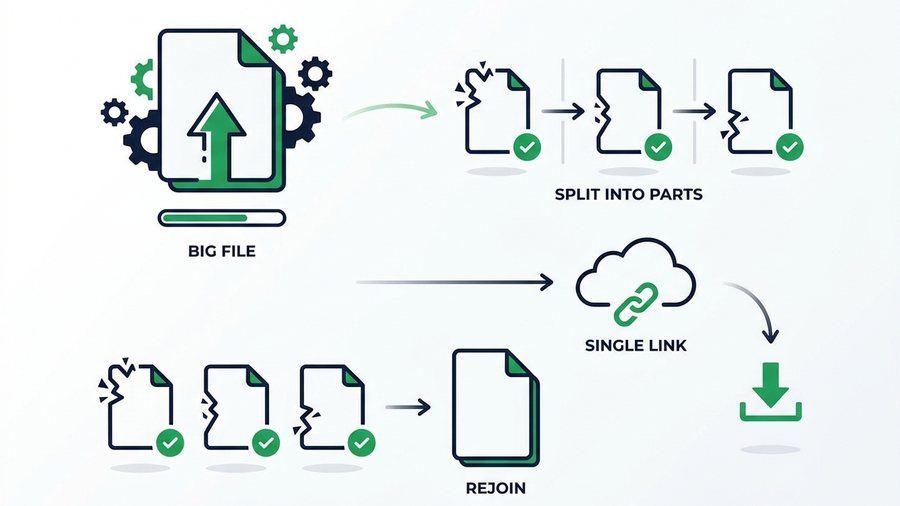
Sometimes a file is just too big for the pipe you're trying to push it through. An email cap, a USB drive with a size limit, or an old upload form that rejects anything over a certain size. Splitting the file into smaller parts is a classic fix: you break one large file into several chunks, move them, and stitch them back together on the other side.
It's a reliable method that's been around for decades, and it still works. But it's also more fragile than most people expect. If one part goes missing or gets corrupted, the whole file is useless, and your recipient needs the right software to rejoin the pieces.
This guide shows you how to split files on both Windows and Mac, how to reassemble them, what can go wrong, and why a single expiring link is usually the easier path for everyday sharing.
Key takeaways
- 7-Zip (free) splits a file into numbered volumes like
.001and.002; type25M,100M, or4000Mfor the part size.- On Mac the built-in
split -b 100mcommand is free; rejoin the pieces withcat part_* > yourfile.zip.- One missing or corrupted part makes the whole file unusable, because there is no partial recovery.
- A single expiring link (up to 100 files, 3 GB free) skips rejoining and needs no software on the recipient's end.
Why Would You Split a File?
Splitting made a lot of sense in the era of floppy disks and email-only sharing. Today the reasons are narrower but still real:
- Email caps. To fit chunks under a 20 to 25 MB attachment limit across several messages.
- FAT32 drives. This older USB format can't hold a single file over 4 GB, so large videos must be split.
- Unreliable connections. Smaller parts are easier to re-download if a transfer drops midway.
- Old upload forms. Some legacy systems reject files above a fixed size.
If none of those apply to you, splitting is probably more hassle than it's worth. There are simpler ways to move a big file, which we'll get to. For the full menu of options, our guide to how to send large files online compares them side by side.
Split a File on Windows
Windows doesn't split files on its own, so you'll use a free archive tool. 7-Zip is the most popular and it's completely free.
Using 7-Zip
- Download and install 7-Zip from its official site.
- Right-click your large file and choose 7-Zip > Add to archive.
- In the dialog, find the Split to volumes, bytes field.
- Enter a size per part. Type
25Mfor 25 MB chunks,100Mfor 100 MB, or4000Mto fit FAT32 drives. - Click OK. 7-Zip creates files named
yourfile.zip.001,.002,.003, and so on.
Using WinRAR
WinRAR works almost the same way. Right-click the file, choose Add to archive, and set Split to volumes, size in the dialog. It produces parts named .part1.rar, .part2.rar, and so on. WinRAR is paid software after a trial, so 7-Zip is the better free pick.
Split a File on Mac
Mac users have two good routes: a free app or the built-in Terminal.
Using Keka
Keka is a friendly, low-cost archive app for macOS. Open Keka, set the Split field to your chosen part size (for example 100 MB), then drag your file onto the window. Keka outputs a series of numbered parts you can move or send.
Using Terminal
If you're comfortable with the command line, macOS and Linux include the split command for free:
- Open Terminal.
- Type
split -b 100m yourfile.zip part_and press Enter. - This creates files named
part_aa,part_ab,part_ac, and so on, each 100 MB. - To rejoin later, run
cat part_* > yourfile.zip.
Terminal splitting is fast and needs no extra software, but the parts have no built-in error checking, so handle them carefully.
Tools at a Glance
| Tool | Platform | Cost | Rejoin method |
|---|---|---|---|
| 7-Zip | Windows | Free | Open .001, extract |
| WinRAR | Windows | Paid trial | Open .part1.rar, extract |
| Keka | Mac | Low cost | Open first part, extract |
Terminal split |
Mac / Linux | Free | cat part_* > file |
| PeaZip | Windows / Linux | Free | Open first volume, extract |
How to Reassemble the Parts
Rejoining is where recipients most often get stuck, so send clear instructions along with the files.
Tip: Put the rejoin steps in the same message as the files, and name the exact tool and action (for example, "open the
.001file and choose Extract Here"). A vague "unzip these" is where most recipients stall.
- 7-Zip: Put all parts in the same folder, right-click the
.001file, and choose Extract Here. 7-Zip finds the rest automatically. - WinRAR: Keep all parts together, double-click the
.part1.rarfile, and extract. - Keka: Double-click the first part; Keka reassembles the whole file.
- Terminal: Run
cat part_* > yourfile.zipin the folder holding the parts.
The golden rule: every single part must be present and named correctly. Miss one, or let one arrive corrupted, and the file won't rebuild.
Risks and Downsides
Splitting works, but it comes with real trade-offs you should weigh first.
For a folder of documents, compressing first can shrink things enough that you never need to split at all. See how to compress files before sharing for what actually saves space.
Why One Expiring Link Is Usually Simpler
Here's the honest take: for most everyday sharing, splitting is overkill. A single download link solves the same problem with none of the fragility. You upload the file once, share one link, and your recipient clicks to download the whole thing.
With ShareIt.onl you drag in up to 100 files (3 GB total per transfer), pick an expiry from 1 hour to 7 days, and get a link plus a QR code. There's nothing to rejoin, no software for the recipient to install, and public access ends automatically when the link expires. Compare that to emailing five numbered parts and hoping none get lost.
If your file is bigger than your link tool's limit - On ShareIt.onl that's 3 GB free - Then splitting or compressing first makes sense. But for the common case of "this is too big for email," a link is faster for everyone. Our guide on how to email a large file covers exactly how to slot a link into your message.