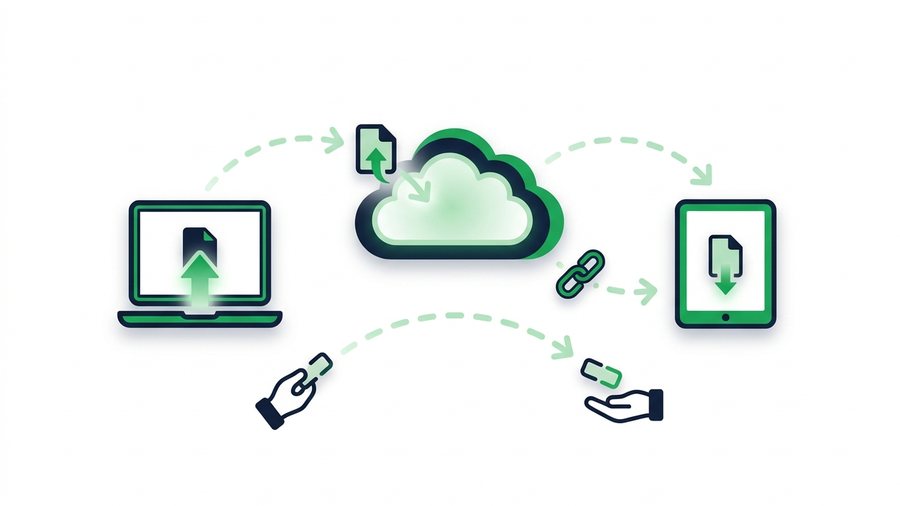
You drag a file into a browser, wait a few seconds, and copy a link. Your friend clicks it and the file appears on their screen. It feels like magic, but every step is doing a specific, understandable job. Once you can picture the path a file takes, choosing tools and fixing problems gets a lot easier.
This guide walks through the whole journey: upload, server storage, link creation, and download. We will keep it simple and use real numbers so nothing feels vague. No computer science degree required, just a little curiosity about the trip your files take.
By the end, you will understand why a link often beats an email attachment, what a server actually does, and why big files get broken into pieces. Let's follow one 40 MB video from your laptop to your coworker's phone.
Key takeaways
- A share moves through four stages - Upload, storage, link generation, and download - With the server holding your file in between so both people needn't be online at once.
- Big files are split into 5-10 MB chunks, so a Wi-Fi hiccup only resends the broken chunk, not the whole file.
- Download links use a random 8-character code with trillions of combinations, making a lucky guess practically impossible.
- You pick an expiry of 1 hour, 12 hours, 24 hours, 3 days, or 7 days, after which the server deletes the file and the link goes dead.
The Four Stages of a Share
Every file share follows the same basic route, no matter which service you use. Think of it like mailing a package: you drop it off, it sits in a warehouse, you get a tracking number, and someone picks it up.
| Stage | What happens | Roughly how long |
|---|---|---|
| 1. Upload | Your file travels from your device to a server | 5-60 seconds for 40 MB |
| 2. Storage | The server saves your file on a hard drive | Instant, then held until it expires |
| 3. Link generation | The server creates a unique web address | Under 1 second |
| 4. Download | The recipient's device pulls a copy back down | 5-60 seconds for 40 MB |
The clever part is that stages 1 and 4 are separated in time. You upload now; your friend can download in three hours. The server holds the file in between, which is why you do not both need to be online at the same moment.
Stage One: The Upload
When you pick a file, your browser reads it from your drive and starts sending it over the internet in tiny packets. Each packet is like one page of a long letter, numbered so it can be reassembled in order at the other end.
HTTP and HTTPS, the language of the web
Your browser and the server talk using a set of rules called HTTP. The "S" in HTTPS means the conversation is encrypted, so anyone snooping on the wire sees scrambled nonsense instead of your file. A padlock icon in the address bar confirms the connection is protected. Reputable tools, including ShareIt.onl, use HTTPS for every transfer so your upload stays private in transit.
Chunking for big files
A 200 MB file is too large to send in one clean shot, so browsers and services split it into "chunks," often 5 to 10 MB each. If your Wi-Fi hiccups on chunk 12 of 30, only that chunk needs resending, not the whole file. This is why modern uploads can survive a shaky connection that would have failed years ago.
Stage Two: What a Server Actually Does
A server is just a powerful computer that stays on all the time and answers requests from other computers. Where your laptop sleeps and closes its lid, a server sits in a data center with steady power and a fast internet line.
When your chunks arrive, the server does a few jobs in order:
- Reassembles the chunks back into your complete 40 MB file
- Runs a quick check to confirm no pieces are missing or corrupted
- Writes the file to a storage drive
- Records details like the file name, size, and expiration time in a small database
That database entry is the file's ID card. It remembers that "video.mp4, 40 MB, expires in 24 hours" lives at a specific spot on the drive. To learn more about the bigger picture, see what is a file sharing link.
Stage Three: Creating the Link
Now the server needs a way for someone else to find that one file among the millions it stores. It generates a unique address, usually a random string of letters and numbers like /d/7fK9p2Qx.
Why the codes look random
Random codes are hard to guess. If links were numbered 1, 2, 3, a stranger could type /d/4 and stumble onto someone else's file. A random 8-character code has trillions of combinations, so guessing your way in is effectively impossible.
Warning: A random code is nearly impossible to guess, but anyone who has the link can open it. Send links directly to the right person and avoid posting them in public places.
The QR code shortcut
A QR code is simply that same link drawn as a square of dots. A phone camera reads the pattern and opens the address, no typing required. It is handy for sharing across the room or onto a device that cannot easily paste a link. For a deeper look at moving big items, our send large files page has practical tips.
Stage Four: The Download
When your recipient clicks the link, their browser sends a request to the server: "Please send me the file at code 7fK9p2Qx." The server checks its database, confirms the file still exists and has not expired, then streams the chunks back down to their device.
Their browser reassembles the pieces into a complete copy and saves it to their downloads folder. Notice the word "copy," the original stays on the server until it expires. That is the core difference between a link and an attachment.
Why links beat attachments
- Size: Most email caps attachments at 25 MB. A link points to a file of any size the service allows.
- Deliverability: Big attachments get bounced or flagged as spam. A short link almost always lands.
- Control: You can set a link to expire, so it does not live forever in someone's inbox.
- Cleanliness: One tidy link beats a heavy attachment clogging both mailboxes.
You can compare the approaches in detail in our guide on link sharing vs email attachments and see how the same ideas apply to file sharing for teams and remote work.
Expiration and Cleanup
Files do not sit on servers forever, and that is a good thing. When you choose an expiry window like 1 hour, 12 hours, 24 hours, 3 days, or 7 days, you tell the server when to delete the file automatically.
| Expiry choice | Best for | What happens after |
|---|---|---|
| 1 hour | A quick same-room handoff | File and link stop working |
| 24 hours | Sending a document to review today | Public link is disabled |
| 3 days | A file a client needs within a couple of days | Public link is disabled |
| 7 days | A project file or longer wait for slow responders | Public link is disabled |
Automatic cleanup keeps storage tidy and limits how long your data exists online. If you are unsure which window to pick, read how long should a share link last. You can also start from scratch on the homepage.
Terms like MTP, TLS and chunked upload come up a lot in this area - the glossary defines them in one line each, and the blog covers what changes over time.