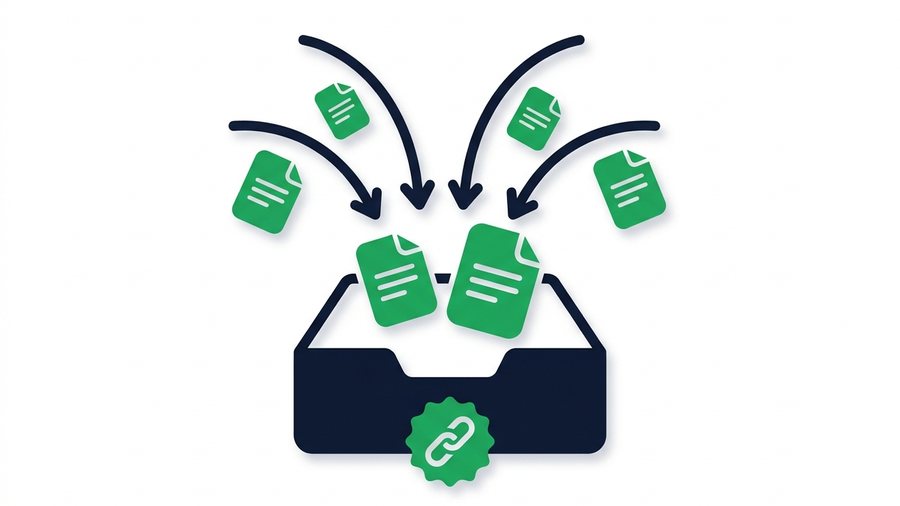
Most file sharing runs one way: you pick a file, you get a link, you send it. But plenty of everyday situations run the other way. You need the signed contract back. You need the wedding photos everyone took on their phones. You need thirty students to hand in a project without thirty separate email threads.
Asking people to "just email it" works until the files are too big, or until you are chasing six people who all replied to the wrong message. An upload link fixes that. You create one link, share it once, and anyone who opens it can send files straight to you. They do not sign up, they do not install anything, and everything they send lands in one place.
This guide walks through creating an upload link on ShareIt.onl, what the person on the other end sees, and the settings worth knowing before you send it out.
Key takeaways
- An upload link (sometimes called a file request or upload inbox) lets other people send files to you
- You need a free account to create one; the people sending files do not
- Each link can carry a title and a note, so senders know exactly what to upload
- You can keep up to 10 open links at once and close any of them early
- Everything sent to you counts toward your account's 20 GB of storage
What an Upload Link Actually Is
A normal share link points at files you already uploaded. An upload link points at an empty drop box with your name on it. When someone opens it, they see a short page explaining what you are asking for and a button to add their files.
Once they upload, the files become a share that belongs to you, not to them. They appear in your dashboard alongside everything else you have sent, and you can download, extend, or delete them like any other share. The sender gets a confirmation and nothing else - they cannot browse what other people sent, and they cannot see your other files.
That last detail matters when you are collecting from several people at once. Everyone uses the same link, but nobody sees anybody else's uploads.
Creating Your Upload Link
The whole process takes under a minute.
Step 1: Sign in
Upload links are the one feature that needs an account, because the files have to belong to someone. Sign in with Google from the top of any page - it is one click, there is no form to fill in, and it costs nothing. See our guide on what a file sharing link is if you want the background first.
Step 2: Open your dashboard
Go to your account page. Alongside your existing shares you will find the section for upload links, with a button to create a new one.
Step 3: Add a title and a note
Both are optional, but both are worth thirty seconds of thought. The title is what senders see at the top of the page - something like "Q3 invoices" or "Photos from Dad's birthday" removes all ambiguity. The note is a short instruction underneath: "PDFs please, one per invoice" or "originals not screenshots, they lose quality."
Clear instructions here save you a round of back-and-forth later. People upload what you ask for when you actually ask for it.
Step 4: Pick how long it stays open
Choose 7 days or 30 days. The link stops accepting uploads when that window closes, which is useful for anything with a deadline - a submission window, a project handover, an event where you want photos while people still remember.
Step 5: Share the link
You get a short URL. Paste it into an email, a group chat, a class announcement, wherever the people you are collecting from already are. There is nothing else to set up.
What the Sender Sees
Worth knowing, because you are the one who will be answering questions about it.
They open the link and land on a simple page showing your title and note, plus an upload area. They drag files in or tap to browse, and the upload starts. They see a progress bar, then a confirmation when it finishes.
That is the entire experience. No account, no app, no email verification, no "download our tool to continue." On a phone they can upload straight from the camera roll or the Files app. It works the same on iPhone, Android, Windows, and Mac, because it is just a web page.
Each batch they send follows the normal share rules: up to 100 files and 3 GB in one go. If someone has more than that, they can simply use the link a second time.
Good Ways to Use One
A few patterns that come up constantly:
| Situation | Why an upload link helps |
|---|---|
| Collecting client documents | No attachment limits, no chasing replies, everything in one place |
| Event or wedding photos | Guests send originals instead of compressed chat versions |
| Freelance deliverable handover | Client sends source material without needing your cloud account |
| Homework or submissions | One link for the whole class, deadline built in |
| Family photo gathering | Relatives who hate apps can still take part |
The common thread is that the other person has to do almost nothing. Anything that adds a signup step loses half the people you are asking.
Managing Links After You Send Them
Open links live in your dashboard. You can see how many uploads each one has received, and close any link early if you have what you need - closing stops new uploads immediately without touching what has already arrived.
You can keep 10 links open at once. If you hit that ceiling, close a finished one to free up a slot. Old closed links do not count.
One thing to watch: files people send you count toward your own storage, not theirs. A free account holds 20 GB, and everything arriving through your upload links draws on that. Files stay put once their link expires, so if you are collecting from a large group, download what you need and delete the shares as you go - nothing clears itself.
Files that arrive through an upload link behave like your own shares afterwards, so the usual controls apply: they expire on schedule, you can delete them early, and you can extend anything you want to keep a bit longer. Our guide on how long a share link should last covers picking sensible windows.
A Few Practical Tips
Say what format you want. "Send the invoice" gets you a phone photo of a printout. "PDF please" gets you a PDF.
Set the deadline shorter than you think. A 7-day link with a clear cutoff gets faster responses than a 30-day one people forget about.
Send a reminder with the same link. The link keeps working until it closes, so a nudge two days before the deadline costs you nothing.
Do not use it for anything you must keep forever. Uploads expire like every other share here. Download what matters and store it properly - this is a collection tool, not a backup. See what happens to files after you share them.
Upload links come with a free account, along with 20 GB of storage that your files keep for good. That storage grows too: each friend you invite adds 1 GB permanently once they have joined and shared something.
The Short Version
Sign in, create the link, add a title and a note, choose 7 or 30 days, send it. Everyone you send it to can upload without an account, on any device, and everything lands in your dashboard.
It is the fastest way to stop asking people to email you things that are too big to email.
Ready to set one up? Sign in and create your first upload link, or read about requesting files first.