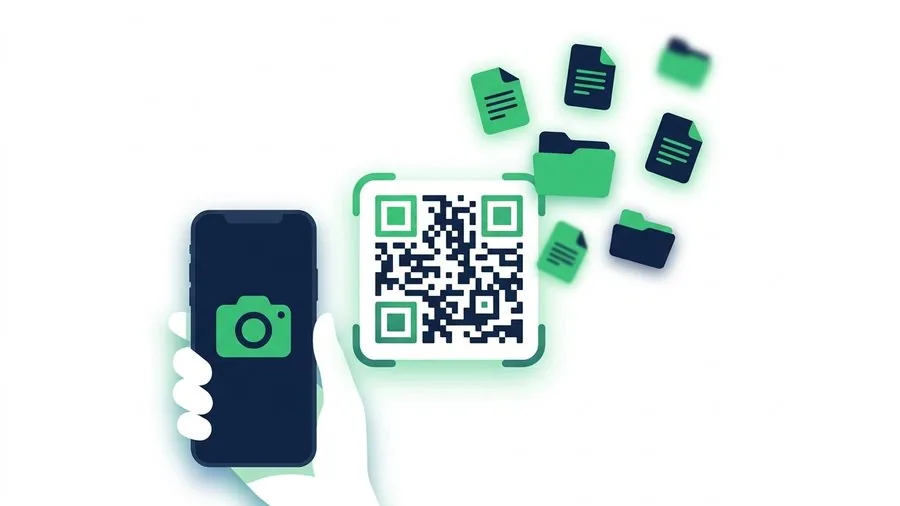
When a file QR code refuses to scan, the code itself is only one possible cause. The camera may not see enough contrast, the display may be reflecting light, the code may be cropped, or the underlying file link may already have expired. Work from visual problems to link and network problems in that order.
TL;DR: Show the complete code at higher brightness, hold the camera steady about 20 to 50 centimetres away, and try the phone's dedicated QR or Lens control. If recognition still fails, copy the link instead. If the code opens an expired or offline page, create a new transfer through the device-transfer hub.
Key points
- Recognition failure is different from a link that opens but cannot download.
- The camera needs the full code, strong contrast and a clear border.
- Moving too close can make focusing harder.
- Camera QR recognition can be disabled or unavailable in a particular app.
- Copying the underlying link is the fastest fallback.
Identify which stage failed
| Symptom | Likely stage | First action |
|---|---|---|
| No banner appears | Camera recognition | Adjust display and distance |
| Wrong or incomplete link | Damaged or cropped code | Show the original code |
| Expired page opens | Link availability | Create a fresh transfer |
| Page opens but download stalls | Network or storage | Check connection and free space |
| Code is on the same phone | Impossible camera angle | Open the original link or saved image |
Apple's official QR instructions recommend keeping the device steady so the code appears in the camera viewfinder. Android phones may offer Camera, Lens or a QR tile in Quick Settings depending on the model.
Fix recognition problems
Start with the display showing the code:
- Increase screen brightness.
- Show the entire square and its surrounding light margin.
- Remove zoom that cuts off an edge.
- Tilt the display to reduce glare.
- Clean the scanning phone's camera lens.
- Hold the phone still and let autofocus settle.
- Move back slightly if the code fills the whole viewfinder.
complete code + clear border + steady focus
                    |
                    v
              link recognised
                    |
          page opens / page fails
The detailed QR sharing guide includes display and printing recommendations. If the code is on the same device, use the instructions for opening a QR code already on your phone, or simply use the Copy link control shown with the transfer.
Check camera and recognition settings
On iPhone, try Camera first and Code Scanner from Control Center second. On Android, try the ordinary Camera app, the QR scanner in Quick Settings, Google Lens or the recognition control in the gallery.
Do not install a random scanner merely because the ordinary camera hesitates. A built-in option is preferable because it receives regular platform security updates and does not need an advertising profile to open a web address.
Separate code problems from link problems
If a banner appears and the browser opens, the code has scanned successfully. An expired page means the link behind it is no longer public. A connection error means the phone cannot reach the page. A failed download may point to storage, browser permissions or an interrupted connection.
Create a fresh file link when the old one has expired. For a laptop-to-phone handoff, Computer to Phone Transfer generates a new code after upload. For a phone-to-phone room, open Phone to Phone Transfer on the receiving device.
If a transfer starts but does not finish, work through recovering a failed file transfer instead of repeatedly rescanning the same code.
QR troubleshooting form
| Check | Result |
|---|---|
| Full code visible | Pass / Fail |
| Bright screen and low glare | Pass / Fail |
| Camera focused | Pass / Fail |
| Banner appeared | Yes / No |
| Page opened | Yes / No |
| Link still active | Yes / No |
Read next
- How file-sharing links work
- How long a share link should last
- Transfer files from laptop to phone
- Transfer files between two phones
FAQ
Why does nothing happen when I point Camera at the code?
The phone may be too close, the display may be dim or reflective, or QR recognition may be disabled in that camera mode. Try a dedicated built-in scanner.
Did the QR code fail if an expired page opened?
No. The code worked and opened its address. The underlying file link has expired and needs to be recreated.
Can I type the address instead?
Yes, but copying the link is safer than retyping it because a single incorrect character can lead to the wrong or missing page.