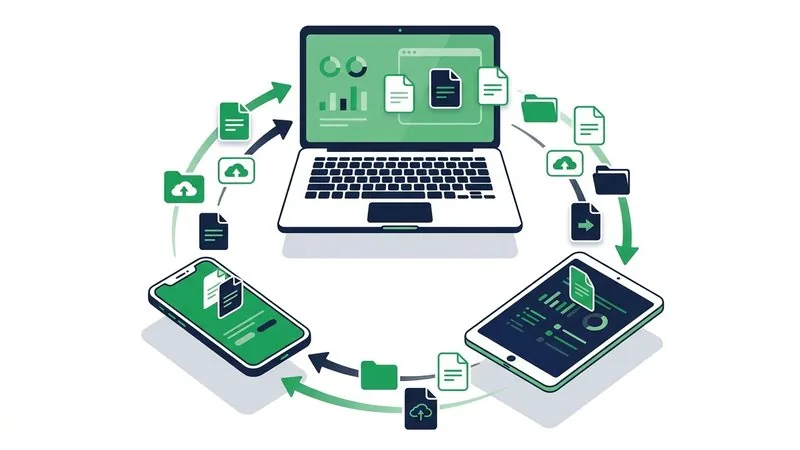
Android and Windows offer several ways to exchange files, which is helpful until you have to choose one. Quick Share is convenient nearby, USB is dependable for a large local job, Phone Link is useful for ongoing integration, and a browser transfer works when installation or pairing is the real obstacle.
TL;DR: Use Quick Share for compatible devices in the same room, USB for a very large offline library, and a browser link when the devices are remote, managed or difficult to pair. The device-transfer hub provides separate tools for Android-to-PC and PC-to-Android directions.
Key points
- Direction matters because the screen showing the QR code should suit the receiving device.
- Quick Share is designed for nearby Android and Windows transfers.
- USB avoids uploading but depends on the cable and Android USB mode.
- Browser transfer works across different networks and needs no Windows installation.
- Phone Link is best viewed as ongoing device integration, not merely a one-time file handoff.
Compare the four methods
| Method | Nearby only | Installation | Best for |
|---|---|---|---|
| Quick Share | Yes | Windows app on supported PCs | Fast nearby files |
| USB file transfer | Yes | Driver support | Very large offline batches |
| Phone Link | Usually | Windows setup and phone permissions | Repeated phone-PC use |
| Browser transfer | No | None | Any network and one-time sends |
Google provides current setup and troubleshooting in its official Android and Windows Quick Share guide. Check those requirements before assuming every Windows machine is compatible, particularly on managed work computers.
Pick the correct browser direction
For Android to Windows, open Phone to Computer Transfer on the PC. The PC shows a room code. The Android phone scans it and chooses the files to send.
For Windows to Android, open Computer to Phone Transfer on the PC. Upload there, then scan the finished share code with Android.
Android -> Windows: PC shows room QR -> phone scans -> phone sends
Windows -> Android: PC uploads -> PC shows share QR -> phone downloads
The two directions look similar but start differently. The phone-to-PC guide explains the receiving-room workflow, while the laptop-to-phone guide covers browser downloads on Android.
When Quick Share is the best fit
Choose Quick Share when the PC and Android phone are close, both meet Google's requirements, and you expect to repeat the transfer. Once configured, it avoids an internet upload and works naturally from the Android share sheet.
If discovery fails, confirm Bluetooth and Wi-Fi are enabled, visibility allows the intended sender, and the Windows Quick Share application is running under the expected account. Do not spend half an hour troubleshooting a one-time document. Switch to the browser route and finish the job.
When USB still wins
USB is appropriate for a multi-gigabyte media archive or unreliable internet. Connect a data-capable cable, unlock Android, tap the USB notification and choose File Transfer. Windows File Explorer should then expose the phone's shared storage.
A charging-only cable is a common failure point. If the phone charges but no USB notification appears, test another known data cable before changing drivers. For fully offline alternatives, see sharing files without internet.
Decision form
| Question | Your answer |
|---|---|
| Direction | Android to PC / PC to Android |
| Total size | |
| Same room | Yes / No |
| Can install Windows software | Yes / No |
| Internet available | Yes / No |
Read next
- How to use Wi-Fi Direct for file transfer
- How to recover a failed file transfer
- How to transfer photos from Samsung to a computer
- Browser transfer versus AirDrop and Quick Share
FAQ
Is Quick Share better than a browser transfer?
It is often faster for compatible nearby devices. A browser transfer is more flexible when the devices are remote, the PC is locked down or discovery fails.
Why does Windows only charge my Android phone?
The cable may not carry data, or Android may still be set to charging mode. Use the USB notification to select File Transfer and test a known data cable.
Can the devices use different Wi-Fi networks?
Yes for a browser transfer. Nearby tools and local methods may require proximity or a particular network arrangement.