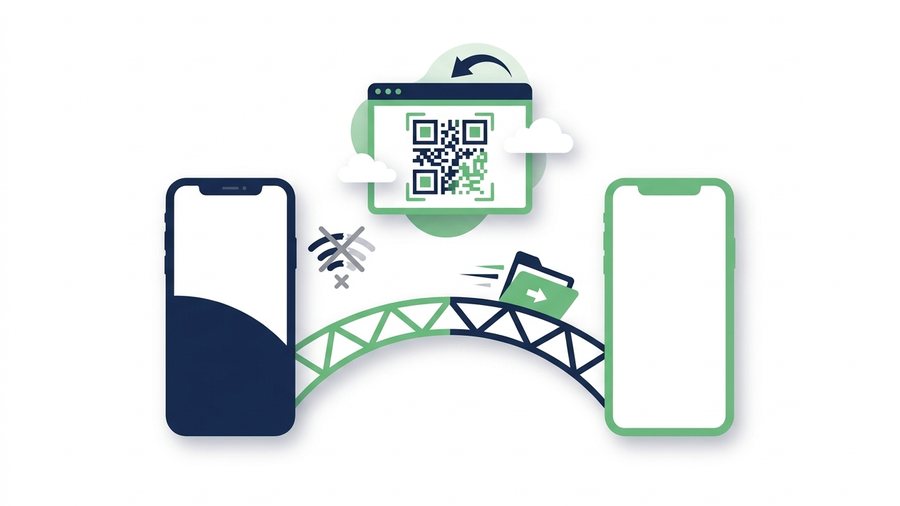
You want to send a folder of vacation photos from your iPhone to a friend's Android phone. You tap Share, look for the other phone, and it never appears. That can still happen because nearby-sharing support depends on the Android model, software version and visibility settings.
AirDrop remains Apple's sharing interface. Google now documents AirDrop interoperability for Quick Share on select Android devices, but it is not available on every Android phone. The universal fallback is a browser transfer because it does not depend on a particular model or nearby-sharing rollout.
The fix is refreshingly simple: use something both phones already have, a web browser. A browser-based link, backed up by a QR code you can scan across the table, bridges the two platforms in about a minute. Here's exactly why the native tools fail and how the bridge works.
Key takeaways
- Native nearby support varies. Select Android devices can interoperate with AirDrop, while many other Android phones still need a different route.
- The fix both phones already share is a web browser plus a QR code, working the same in either direction.
- Send up to 100 files and 3 GB per transfer, with an expiry of 1 hour, 12 hours, 24 hours, 3 days, or 7 days.
- A link keeps full quality, unlike MMS (a few hundred KB) or email (~25 MB).
How to Use SHAREit From iPhone to Android
If you mean the SHAREit app, both phones need a compatible version installed and open. Choose Send on the iPhone, Receive on the Android phone, select the files, and follow the app's nearby-device prompts to connect. Availability and iOS permissions can make that route less predictable than an Android-to-Android transfer.
If either phone cannot install the app, cannot see the other device, or the two people are not in the same place, use the browser-link method below. It handles the same iPhone-to-Android hand-off without requiring matching apps.
Why Native Nearby Sharing Still Varies
AirDrop is Apple's sharing interface. Quick Share is Google's nearby-sharing system for Android and Windows. Google's current Quick Share documentation says select Android devices can send to iPhone, iPad and macOS through AirDrop interoperability. It also explains that Android devices without that support can use a QR-based web transfer.
That is progress, but it does not make "just AirDrop it" dependable advice for every mixed group. The receiving controls, supported models and software versions can differ. A browser link remains the predictable route because every current iPhone and Android phone can open one.
What people usually try instead (and why it stalls)
- Texting the files. iMessage and SMS/MMS crush photos and videos to save bandwidth, and MMS often caps out at a few hundred kilobytes. What arrives looks blurry.
- Emailing them. Attachments cap around 25 MB, so a handful of full-size photos won't even attach.
- A shared cloud account. This works but usually needs both people signed into the same app with storage to spare, which is a lot of setup for a one-time send.
Tip: Reach for the browser bridge before you text or email photos. MMS crushes images to a few hundred kilobytes and email caps around 25 MB, so a link is the only route that keeps full quality across platforms.
The Bridge: A Browser Link Plus a QR Code
Every iPhone and every Android phone ships with a web browser and a camera that reads QR codes. That shared ground is the whole trick. Instead of trying to connect the two phones directly, one phone uploads the files to a web page, gets a short link, and the other phone opens that link to download them.
Because it all runs in the browser, it doesn't care which phone is which. iPhone to Android, Android to iPhone, phone to laptop, it's the same steps every time. For the shortest route, open Phone to Phone Transfer on the receiving phone and scan its room code with the sending phone. The device-transfer hub covers every other pairing.
If you want the app-specific details before choosing a route, see what currently works with SHAREit on iPhone and iPad and SHAREit on Android. For a simple remote handoff, start with the free file-transfer page instead.
Step by step: iPhone to Android
- On the iPhone, open a browser (Safari or Chrome) and go to a file-sharing tool like ShareIt.onl.
- Tap to add your files, up to 100 files and 3 GB per transfer.
- Pick how long the link should last: 1 hour, 12 hours, 24 hours, 3 days, or 7 days.
- Upload, then show the QR code on your screen.
- On the Android phone, open the camera and point it at the QR code, then tap the link that appears to download the files.
Step by step: Android to iPhone
The steps are identical, just swapped. Upload from the Android browser, and on the iPhone open the Camera app, aim it at the QR code, and tap the banner to open the link and save the files. No app install, no registration form before upload, and no matching ecosystems.
If the two phones aren't in the same room, skip the QR code and just copy the link. Paste it into any chat app, text, or email, and the other person taps it to download.
Methods Compared
Here's how the common options stack up for a genuine iPhone-to-Android send.
| Method | Works across platforms? | File size limit | Setup needed | Keeps quality |
|---|---|---|---|---|
| Native AirDrop and Quick Share path | On supported device combinations | Large | Compatible model and settings | Yes |
| Text message (MMS) | Yes | Very small | None | No, heavy compression |
| Email attachment | Yes | ~25 MB | None | Yes, if it fits |
| Shared cloud app | Yes | Varies | Both sign in | Yes |
| Browser link + QR | Yes | 3 GB per transfer | None | Yes |
The browser method is the only row that combines cross-platform reach, a real size allowance, no registration form before upload, and full quality in one line. The first upload creates the sender's local browser/device account.
Handy Extras That Make It Safer and Easier
A good browser tool adds a few options the native shortcuts don't:
- Password protection. Add a password so only the person you tell can open the link, useful for anything private.
- Delete after first download. Turn this on and the files vanish once the recipient grabs them, so nothing lingers.
- Auto-expiring links. Even if you forget, public access closes when the timer ends; your source stays private in My Files.
- QR code for in-person shares. No typing a long address, just point and scan.
A quick pre-send checklist
- Files under 3 GB total? If not, send two transfers.
- Same room? Use the QR code. Apart? Copy the link into chat.
- Anything private? Turn on the password and delete-after-download.
- Recipient on slow Wi-Fi? A longer expiry gives them time to download.
For a broader look at every route for moving files across devices, our overview of how to share files online rounds it out. And if a transfer feels sluggish, our tips on maximizing file sharing speed will help both phones move faster.
FAQ
Can I AirDrop from an iPhone to an Android phone?
Sometimes, on a supported Android device. Google documents AirDrop interoperability for select Android models, but it is not universal. If the Android phone does not appear, use Phone to Phone Transfer, a browser link with a QR code, email for a small file, or a shared cloud folder.
What's the easiest way to send photos between iPhone and Android?
Open a browser file-sharing tool on the sending phone, upload the photos, and share the link or QR code with the other phone. It works the same in both directions, keeps full photo quality, and needs no app or registration form before upload, which makes it the simplest one-time option. The first upload creates a local browser/device account.
Does sending files by link lower their quality?
No. A link transfers each file exactly as it is, so the download matches the original resolution and detail. Quality only drops when a service re-compresses your files, which text messages and some chat apps do but a direct download link does not.
Do both people need to install the same app?
No, and that's the main advantage. Both phones use their built-in web browser, so there's nothing to download and no matching ecosystem to worry about. One person uploads and shares a link; the other just opens it in their browser to download.
How do I scan the QR code to receive a file?
On iPhone, open the Camera app and point it at the QR code, then tap the notification banner that appears. On Android, open the camera or Google Lens and do the same. The link opens in your browser, and you tap to download the files.