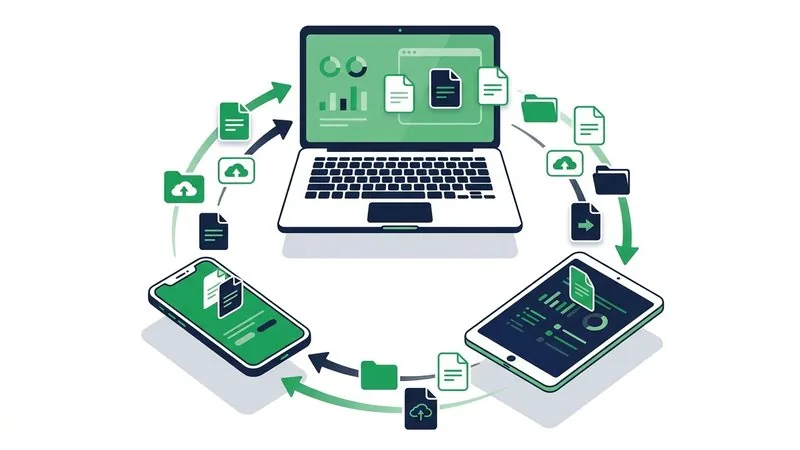
Chromebooks are built around the web, but downloaded files still live locally in the Files app. That makes browser transfer a natural fit. Android owners also have Quick Share, while iPhone owners may choose a browser link, cloud drive or cable depending on the direction. The device-transfer hub keeps both browser directions together.
TL;DR: For phone to Chromebook, open Phone to Computer Transfer on the Chromebook and scan its room code with the phone. For Chromebook to phone, upload through Computer to Phone Transfer and scan the finished share code. Quick Share is an excellent nearby option for Android when both devices support it.
Key points
- Chromebook counts as the computer in ShareIt.onl's directional tools.
- Android and Chromebook can use Quick Share for nearby local transfers.
- Browser transfer works with both Android and iPhone.
- USB behavior differs between Android and iPhone.
- Chromebook downloads normally appear in the Files app under Downloads.
Pick by phone and direction
| Pairing | Useful native option | Universal option |
|---|---|---|
| Android to Chromebook | Quick Share or USB | Browser receiving room |
| Chromebook to Android | Quick Share | Browser upload and QR |
| iPhone to Chromebook | USB for some media imports | Browser receiving room |
| Chromebook to iPhone | Cloud or app-specific methods | Browser upload and QR |
Google lists Android phones, Chromebooks and supported Windows computers among the devices that can use Quick Share. That makes it a strong choice for an Android and Chromebook in the same room. It does not remove the need for a browser fallback when the sender is an iPhone or device discovery is unavailable.
Phone to Chromebook
- Open Phone to Computer Transfer in ChromeOS.
- Leave the receiving-room QR code visible.
- Scan it with the Android or iPhone camera.
- Choose the files on the phone and send them.
- Save the arrivals into the Chromebook Downloads folder or another chosen location.
The full phone-to-PC or laptop guide applies equally to a Chromebook because the transfer runs in the browser.
Chromebook to phone
- Open Computer to Phone Transfer on the Chromebook.
- Add the files from My files, Downloads or Google Drive.
- Wait for the QR code.
- Scan it with the receiving phone.
- Download and confirm the file opens.
phone -> room code on Chromebook -> Chromebook Downloads

Chromebook file -> upload -> QR code -> phone Downloads
The laptop-to-phone guide explains where the result lands on iPhone and Android. For an in-person handoff, the QR sharing guide provides scanning and display tips.
When Quick Share or USB is better
Quick Share is a good Android-to-Chromebook default when it is already enabled because files travel locally and both devices are designed for the workflow. Confirm visibility on the receiving device and keep both screens awake during discovery.
USB makes sense for a very large Android library with limited internet. Connect a data-capable cable, unlock Android and choose File Transfer from the USB notification. ChromeOS should open the phone in Files. An iPhone cable connection is less flexible for arbitrary files, so check what ChromeOS exposes before relying on it for a complete migration.
Cloud storage is the right answer when the same person needs the files on both devices repeatedly. A temporary browser share is better when the job is one delivery with a clear finish.
Chromebook transfer form
| Question | Your answer |
|---|---|
| Phone | Android / iPhone |
| Direction | To Chromebook / From Chromebook |
| Same room | Yes / No |
| Approximate size | |
| Needed again later | Yes / No |
Read next
- How to share files without internet
- How to use Wi-Fi Direct
- How to recover failed transfers
- How to share files online
FAQ
Does a Chromebook count as a laptop?
Yes. Use the computer side of the directional transfer tools. ChromeOS can upload and download through its browser like Windows, macOS or Linux.
Is Quick Share available on Chromebook?
Google supports Quick Share on Chromebooks and Android devices. Availability and settings can still differ by device and managed-account policy.
Can an iPhone send files to a Chromebook without iCloud?
Yes. Open the receiving-room page on the Chromebook, scan its code with the iPhone and select the files in the browser.