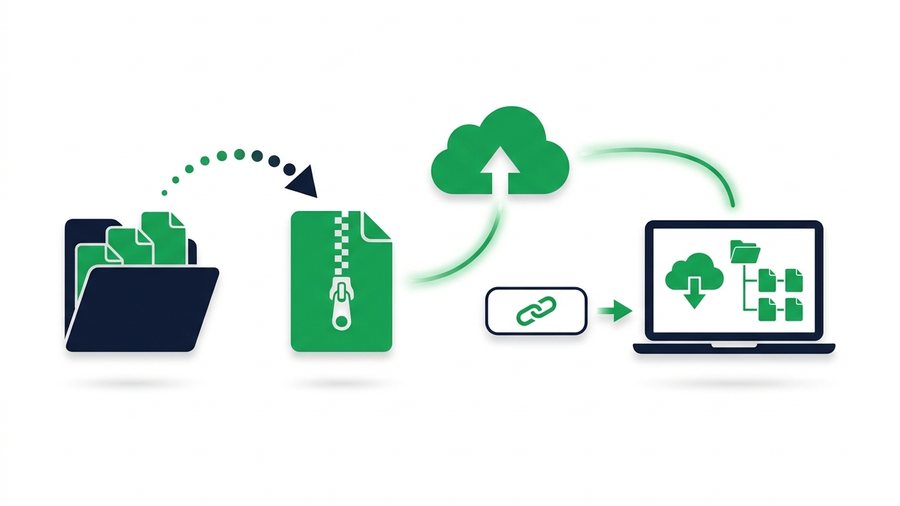
You have a folder with 30 photos, a few documents, and a couple of subfolders, and you need to send the whole thing to someone. Try to attach a folder to an email and you will quickly hit a wall: email handles files, not folders. If you are wondering whether you can share a folder at all, the short answer is yes - The fix is to squeeze that folder into a single ZIP file first.
A ZIP is a tidy container. It bundles many files and folders into one, often shrinks the total size, and keeps your structure exactly as it was. Once you have a ZIP, sending it is as simple as sharing any single file.
This guide shows you how to zip a folder on Windows, Mac, Android, and iPhone, why folders cannot be emailed as-is, and how to hand the result off as one clean link. Every step uses tools already built into your device, so there is nothing extra to install.
Key takeaways
- Email carries files, not folders - Attach a folder and most apps drop your subfolders or reject it outright.
- Zipping a folder into one
.zippreserves the entire folder tree, often shrinks the total, and makes a single file every tool understands.- Every device (Windows, Mac, iPhone, Android) has zipping built in - A right-click or long-press, with no software to install.
- Send the ZIP as one link (up to 3 GB free on ShareIt.onl) to dodge the 25 MB email cap and spam filters entirely.
Why Folders Cannot Be Emailed Directly
Email was built to carry files, not the folder structure around them. When you drag a folder onto a message, most email apps either reject it or silently grab only the loose files inside, dropping your subfolders and organization.
There are three real problems with folders and email:
- No folder support: The attachment system expects individual files, so nested folders confuse it.
- Size limits: A folder of photos easily tops the 25 MB attachment cap most email providers enforce.
- Lost structure: Even when files sneak through, the neat arrangement of subfolders vanishes.
Zipping solves all three at once. The ZIP is a single file email and sharing tools understand, it is usually smaller than the original, and it preserves every subfolder inside. For the fuller comparison, see link sharing vs email attachments.
Zipping a Folder on Windows
Windows has ZIP support built right in, so you do not need any extra software for everyday folders.
The right-click method
- Find your folder in File Explorer.
- Right-click it.
- Choose Compress to ZIP file (on Windows 11) or Send to > Compressed (zipped) folder (on Windows 10).
- A new file appears with the same name and a
.zipending.
That new ZIP sits right next to your folder. Windows may take a few seconds for large folders, and you will see a progress bar for anything over a few hundred megabytes.
Checking the result
Double-click the ZIP to peek inside without unpacking it. If your subfolders are all there, you are ready to share. If the ZIP looks empty or wrong, delete it and try again with the folder fully closed.
Zipping a Folder on Mac
Mac makes this even quicker. The Finder has compression built in and needs just two clicks.
- Open Finder and locate your folder.
- Right-click (or Control-click) the folder.
- Choose Compress "FolderName".
- A file named
FolderName.zipappears in the same spot.
To zip several separate items at once, select them all first, then right-click and choose Compress 5 Items. Mac bundles them into a single Archive.zip you can rename to anything clearer.
Zipping a Folder on a Phone
Phones can zip too, though the steps differ a little by brand. This is handy when all your photos live on your phone and you never touch a computer.
On iPhone
- Open the Files app.
- Tap and hold the folder you want.
- Choose Compress from the menu.
- A ZIP appears in the same location, ready to share.
On Android
- Open the Files by Google app (or your phone's file manager).
- Long-press the folder or select multiple files.
- Tap the menu and choose Compress or Zip.
- Name the archive and confirm.
Once the ZIP exists, you can upload it to a sharing tool straight from your phone's browser, no computer needed.
Choosing a Zip Tool
Built-in tools handle most jobs, but a few situations call for something with more features, like password protection or splitting a giant archive into parts.
| Tool | Platform | Cost | Best for |
|---|---|---|---|
| Built-in Explorer | Windows | Free | Everyday folders |
| Built-in Finder | Mac | Free | Everyday folders |
| Files app | iPhone | Free | Zipping on the go |
| Files by Google | Android | Free | Zipping on the go |
| 7-Zip | Windows | Free | Passwords, high compression |
| The Unarchiver | Mac | Free | Opening unusual formats |
For the vast majority of shares, the free built-in option is all you need. Reach for a dedicated tool only when you want a password or need to squeeze a very large folder down further.
Sending the ZIP as a Link
Now that your folder is one ZIP file, sharing it is straightforward. Upload the ZIP to a file-sharing tool, and it hands you a link and a QR code you can pass along.
Here is a quick checklist before you send:
Tip: Always click your own link once before you send it. A 10-second self-test confirms the ZIP uploaded fully and opens cleanly, so the recipient never lands on a broken or half-uploaded download.
A link beats attaching the ZIP to email because it dodges size caps and spam filters. The recipient clicks, downloads the ZIP, and unzips it to find your folders exactly as you arranged them. For heavier archives, our send large files page covers the details, and how to share files online walks through the basics.
Preserving Structure on the Other End
A ZIP keeps your folder tree intact, but your recipient has to unzip it to see the structure. Remind them of one simple step so nothing gets lost.
To open a ZIP, they just double-click it on a computer or tap it in their phone's Files app and choose Extract or Unzip. The original folders and subfolders reappear, named and nested exactly as you sent them.
One friendly tip: name your ZIP clearly, like Project-Photos-July.zip rather than Archive.zip. A clear name tells the recipient what is inside before they even open it. To decide how long the link should stay live, see how long should a share link last, or start fresh from the homepage. Teams handing off project folders may also like file sharing for teams and remote work.